 NEWS
NEWS
Apple’s First Store in Kyoto Draws Inspiration from Local Design
 08/24/2018
 4152
4152
Apple’s first retail location in the Japanese city of Kyoto opens this Saturday. Ahead of its grand opening, Apple has shared some new photos and details about the multi-floor store.
It was just over a week ago that Apple replaced construction barriers outside of Kyoto’s Zero Gate shopping complex with intricate window coverings themed after woven bamboo. Both the physical signage and a comprehensive digital campaign spanning wallpapers, animations, Apple Music playlists, and more promoted a grand opening date of August 25th.
The window graphics enjoyed a short stay on Shijo Street, swiftly peeled away early this morning to reveal the interior of Kyoto’s first store. A large, lighted Apple logo on the fourth floor of the building was also uncovered.
Apple says the building’s architecture was designed to be in harmony with its environment:
"Apple Kyoto’s architecture takes inspiration from local design and materials, with the upper levels clad in a translucent envelope inspired by Japanese lanterns. The use of lightweight timber frame and special paper on the upper facade also draw reference to the country’s traditional houses."
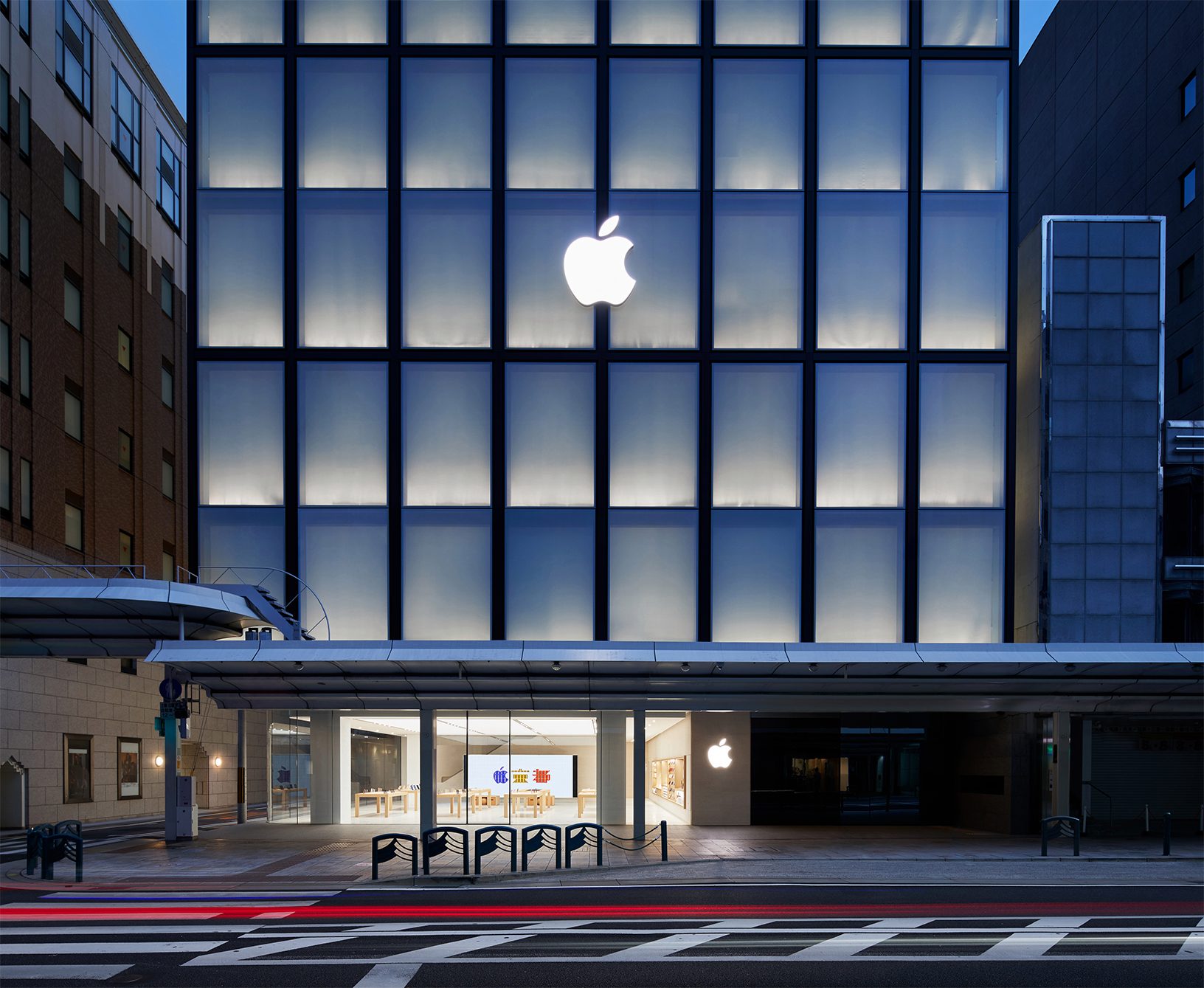
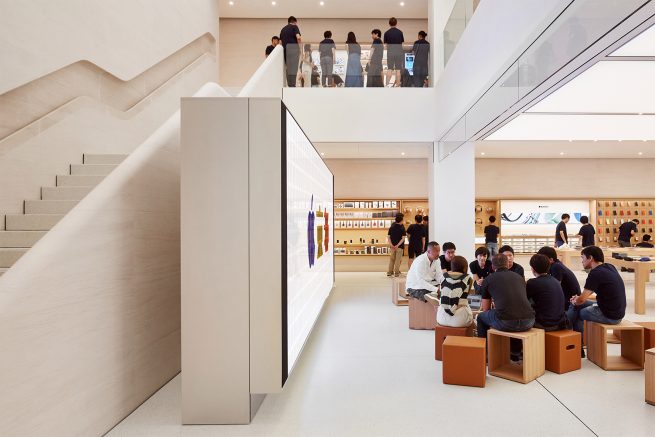

Kyoto’s first store will be Apple’s ninth currently open in Japan and 504th worldwide. It’s the second of three new stores promised for Japan earlier this year in a teaser image posted on Apple’s retail website. The first, Apple Shinjuku, opened in April and replaced a small Apple Watch shop across the street. In late November 2017, Apple’s store in Shibuya closed for renovations which are expected to be completed before the end of the year.
Last Saturday, Apple moved two of its mall stores in Irvine, California and Orland Park, Illinois to new and expanded locations. Fall is shaping up to be a busy season for retail news, as several ongoing projects across the world near completion. As always, we welcome you to share your photos with us if you attend any grand openings. In the meantime, follow 9to5Mac’s retail guide for continued store news.
More photos from Twitter below:
#AppleKyoto 確かに2階来ると「和」の融合を感じる!
— Nobi Hayashi 林信行 (@nobi) August 23, 2018
近くから見ても障子にしか見えないガラス製の窓と漆喰の柱がうまく和テイストだしてる。ガラスのこと聴きたいけど、Foster+Partnersの人がいない模様 pic.twitter.com/c0Y9k5XRqK
Apple京都お披露目です!#Apple京都 pic.twitter.com/QOtpnEo2ZM
— -MobilePanda- (@Mobilepandainfo) August 22, 2018
Apple Store京都が出来つつある。#apple #iphone #mac #applewatch #ipad #京都 #applestore pic.twitter.com/Fw8MVtPwWe
— ゆるゆるプログラマー (@sekainetjp) August 22, 2018
Source: 9to5mac










