
NEWS

Apple Informed Developer Program Members Must Enable Two-factor Before Feb 27th

02/14/2019

2962

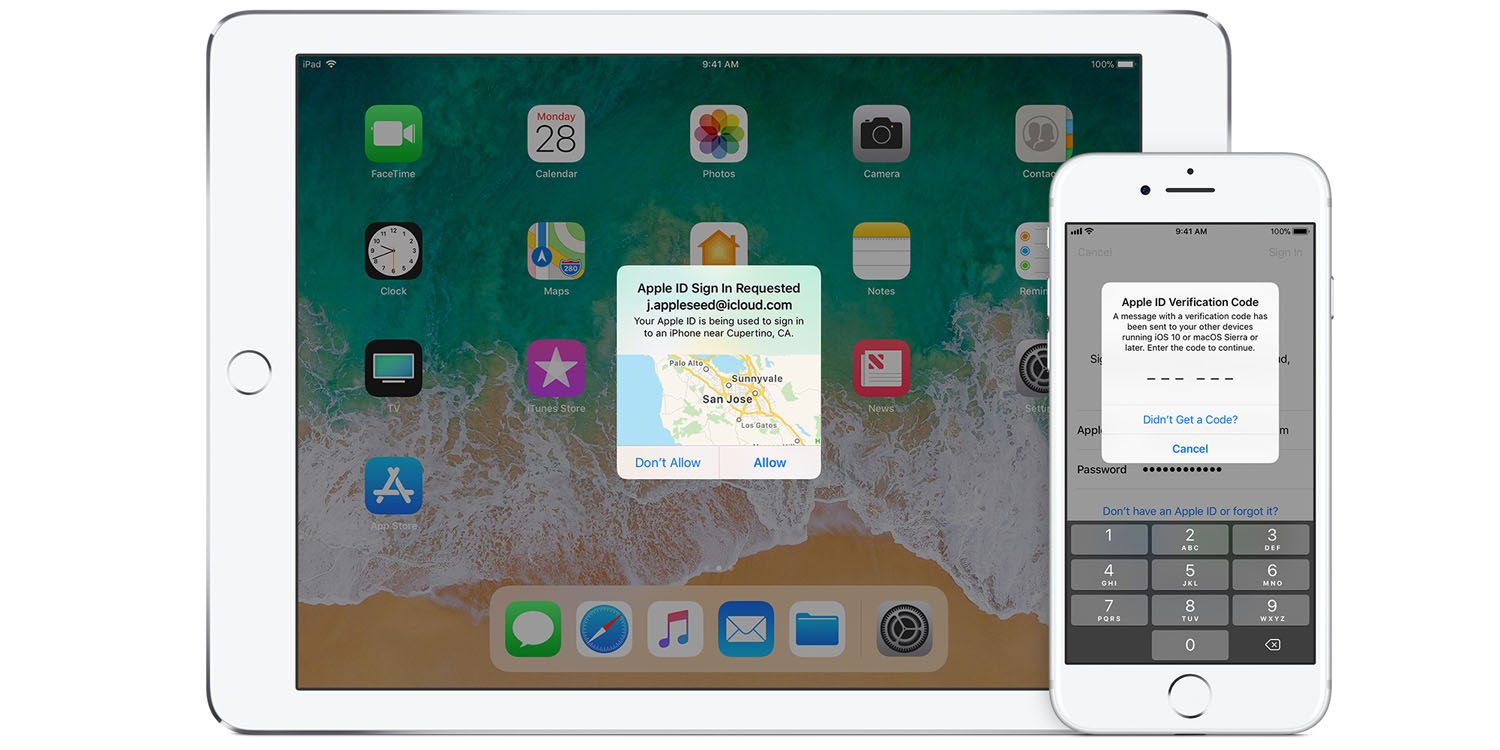
Apple today has informed members of its Developer Program that they must enable two-factor authentication on their account by the end of this month. Apple made the announcement in an email to Developer Program members.

Apple Informed Developer Program Members Must Enable Two-factor Before Feb 27th

Apple has seemingly required new Apple Developer Program signups to have two-factor authentication enabled for a while now. This change, however, is targeting existing developers who have yet to enable the security measure on their account.


In the email, Apple says that developers must enable two-factor authentication by February 27th:


In an effort to keep your account more secure, two-factor authentication will be required to sign in to your Apple Developer account and Certificates, Identifiers, and Profiles starting February 27th, 2019.


Apple then points developers to its support article about two-factor authentication. For the general public, two-factor authentication is still optional, but you’ll run into roadblocks for certain features if you don’t have it enabled.


This change could spell trouble for developers who use two separate Apple IDs – one for development and another for personal use. Nonetheless, Apple hopes this change will “ensure that you’re the only person who can access your account.”


Source: 9to5mac

Windows
Mac OS
iOS
Linux
3uTools
Win 64-bit For this device
V9.01 2025-12-27
Download
Win 32-bit For this device
V9.01 2025-12-27
Download
3uTools
Intel Chip How to Identify Chip Type
V9.01 2025-12-31
Download
Apple Silicon
V9.01 2025-12-31
Download
How to Identify Chip Type
1.  Click the Apple icon in the top-left corner of the screen and select About This Mac.
2.  Check the Processor or Chip field to determine if it is "Intel" or "Apple".
Please use the 3uTools PC client to install the iOS client:
1、 Install either the Windows or Mac version of 3uTools on your computer
2、 Open the PC client and connect your device to the computer via USB cable
3、 After the connection is successful, wait for the computer to automatically install the mobile app for the device, or locate “Install Mobile App” on the computer and manually click to install.
3uTools
deb file
V3.01 2025-11-20
Download
rpm file
V3.01 2025-11-20
Download
Windows
Windows
iOS
iOS
Android
Android
TV
TV
3uAirPlayer
Win 64-bit For this device
V6.0.2 2025-11-19
Download
Win 32-bit For this device
V6.0.2 2025-11-19
Download
iOS Device Mirroring (No App Required)
1、 Install 3uAirPlayer on the Windows PC
2、 Open Control Center and select Screen Mirroring
3、 From the list, choose your PC to start mirroring
4、 Or connect your iOS device to the PC via USB to begin mirroring
Scan to get "3uAirPlayer" App
3uAirPlayer TV V1.0.18
2025-11-28
TV System Requirements: Android 7.0 or later
Download the TV installation package, copy it to a USB drive, insert it into your TV or set-top box, then select the file from the home screen to install.




