 NEWS
NEWS
Apple Ceases iOS 15.0.2 Code Signing Following iOS 15.1 Launch
 11/03/2021
 2612
2612
Apple on Tuesday stopped signing code for iOS 15.0.2, effectively blocking downgrades from the more recent iOS 15.1 release.
Today's code signing stoppage arrives three weeks after iOS 15.0.2 was issued to address a number of lingering bugs introduced alongside iOS 15.
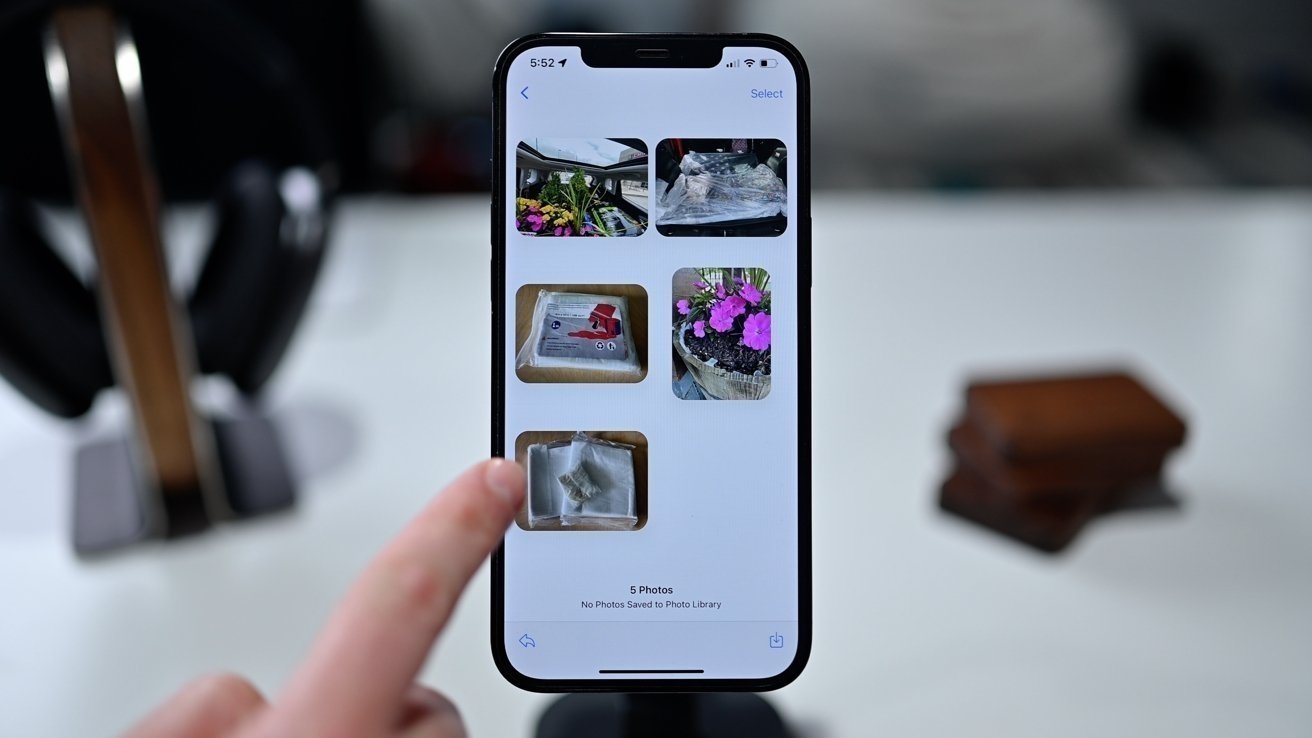
The point release failed to deliver new features, but patched a Find My issue that prevented some AirTag and iPhone Leather Wallet with MagSafe units from connecting to the app. Also fixed was a particularly pesky bug in which photos saved from Messages would disappear from user libraries if the original text thread was deleted.
Last week, iOS 15.1 debuted with a handful of promised feature additions including SharePlay and Wallet support for verifiable COVID-19 cards.
With Apple no longer signing code for iOS 15.0.2, users who upgraded to the latest iOS 15.1 release are unable to downgrade to an older operating system.
The tech giant routinely stops signing legacy code after the release of a new iOS build to protect customers from nefarious actors attempting to take advantage of newly discovered vulnerabilities. Preventing users from downloading older code also allows Apple to keep more iOS devices on the latest, feature-rich software.
Apple debuted its next-generation mobile operating system in late September, introducing iPhone users to a slew of new features, improvements and user interface modifications. Tentpole features include Live Text and Visual Look Up, Focus, upgraded Apple Maps, Health app updates, iCloud+ integration, a Safari redesign and more.
Developers received an initial beta version of iOS 15.2 last week. The upcoming release includes a few enhancements including an App Privacy Report function that helps users keep tabs on app access to sensitive data.
Source: Appleinsider










