 NEWS
NEWS
iOS 26 Has Three New iPhone Features I’ve Been Really Loving
 12/30/2025
 2577
2577

iOS 26 was a huge update for iPhone, not just because of Liquid Glass but also thanks to many new features across the OS. Here are three new iOS 26 features I’ve been especially loving on my iPhone.
#1: Systemwide AutoFill for credit cards
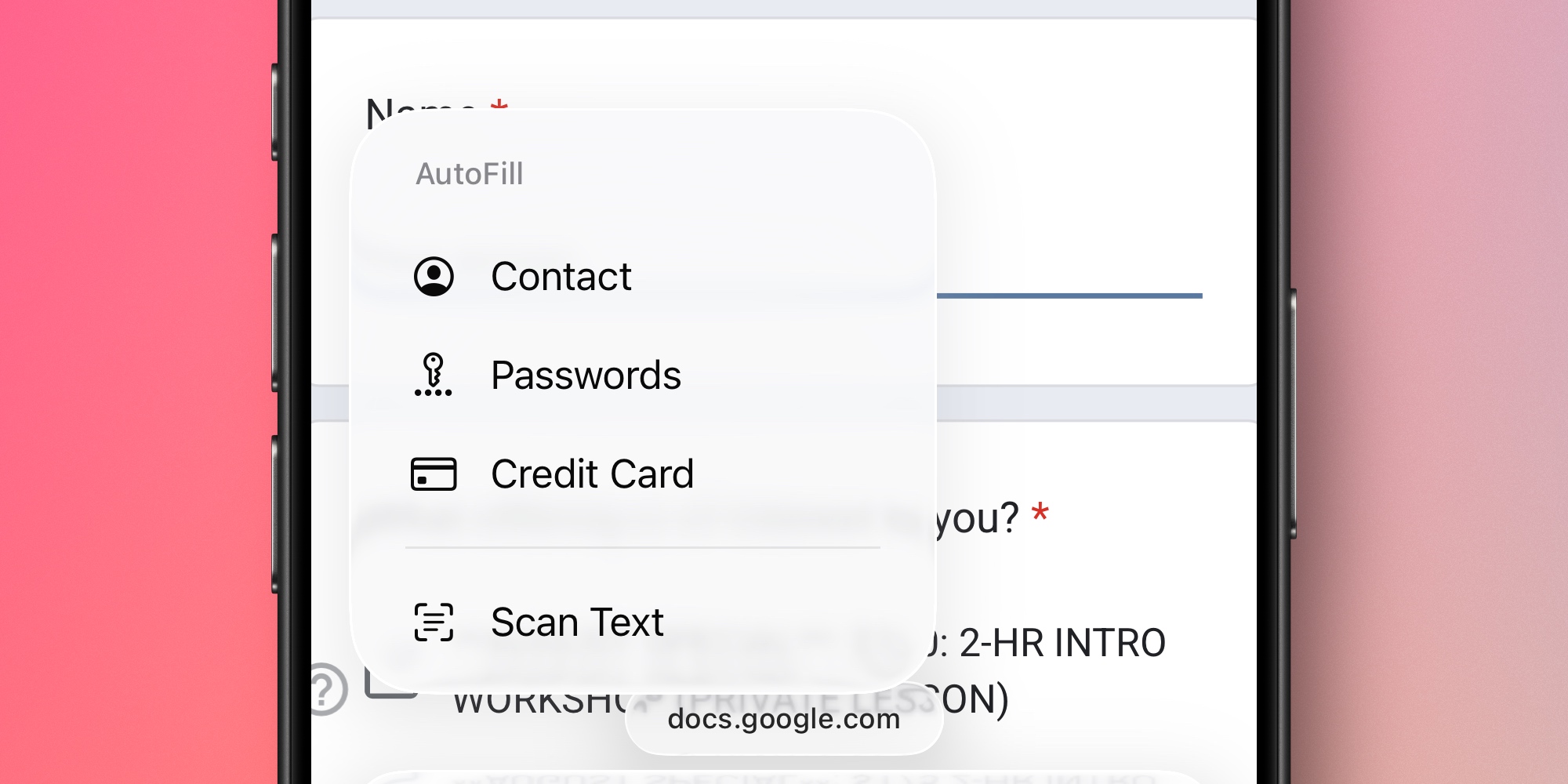
Apple Pay is quick and convenient, but it’s not accepted in all situations. Fairly often, I still need to pay for things on iPhone by entering my credit card details.
In iOS 26, that has gotten way easier thanks to a key change: systemwide access to saved credit cards via AutoFill.
Prior versions of iOS would sometimes suggest credit cards via the keyboard row, but in many situations, those suggestions didn’t appear. Not every web form follows Apple’s expected standards, unsurprisingly.
Thankfully, you can now access your card details right from the systemwide AutoFill menu—regardless of the form you’re viewing.
In any text field across iOS, you can tap the cursor to see AutoFill as a menu option. In iOS 26, Apple added a ‘Credit Cards’ section to that menu. This provides instant access to card details you can copy/paste with ease.
#2: Visited Places in Apple Maps
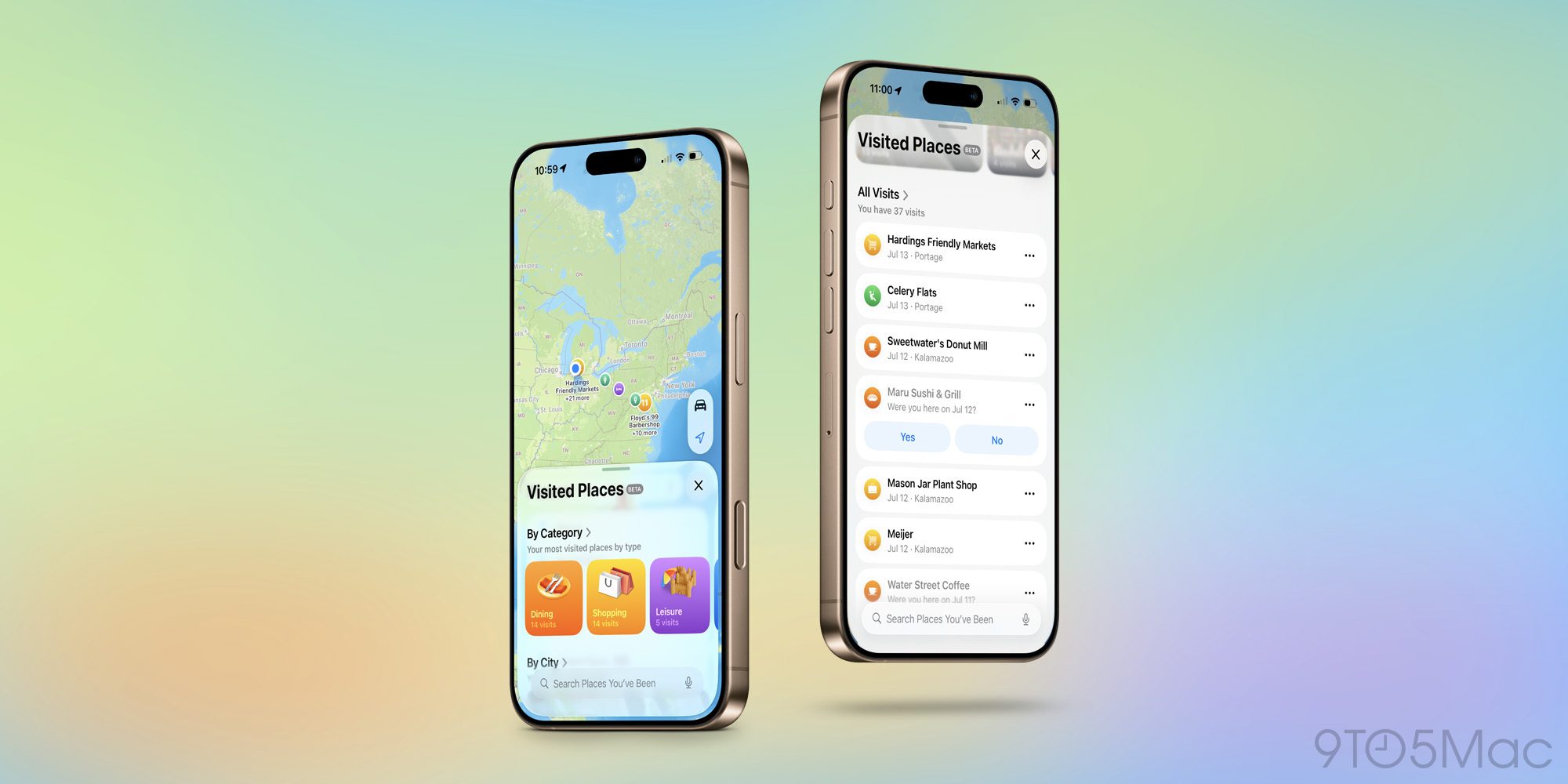
One of the handful of Apple Maps changes in iOS 26 is Visited Places.
Visited Places is opt-in, so it’s not on by default. But if you choose to enable it, the Maps app will automatically keep a record of locations you’ve visited.
Here’s how Apple explains it:
With Visited Places, users can allow iPhone to intelligently detect the places they visit and spend time in — like restaurants or shops — and they’ll automatically be saved to Maps. Users can search for places they’ve visited, and easily share them with family and friends. Visited Places are built with privacy in mind; they’re protected with end-to-end encryption, cannot be accessed by Apple, and can be easily removed with just a swipe.
That last line is clearly very important, otherwise Visited Places could be a privacy nightmare. But secured by end-to-end encryption, Visited Places has proven very convenient for me.
You can always manually pull up the list of places you’ve been. But one of the surprise benefits of the feature for me has been its impact on search results.
Now, when you’re performing a search, Maps will mark places you’ve been with a ‘Visited’ tag. I’ve found this especially helpful when I’m searching for a restaurant, coffee shop, or store that has multiple locations. Rather than needing to remember its address to find the right spot, Maps will help me identify my sought-for location by highlighting it as previously visited.
#3: Pinned music in Apple Music
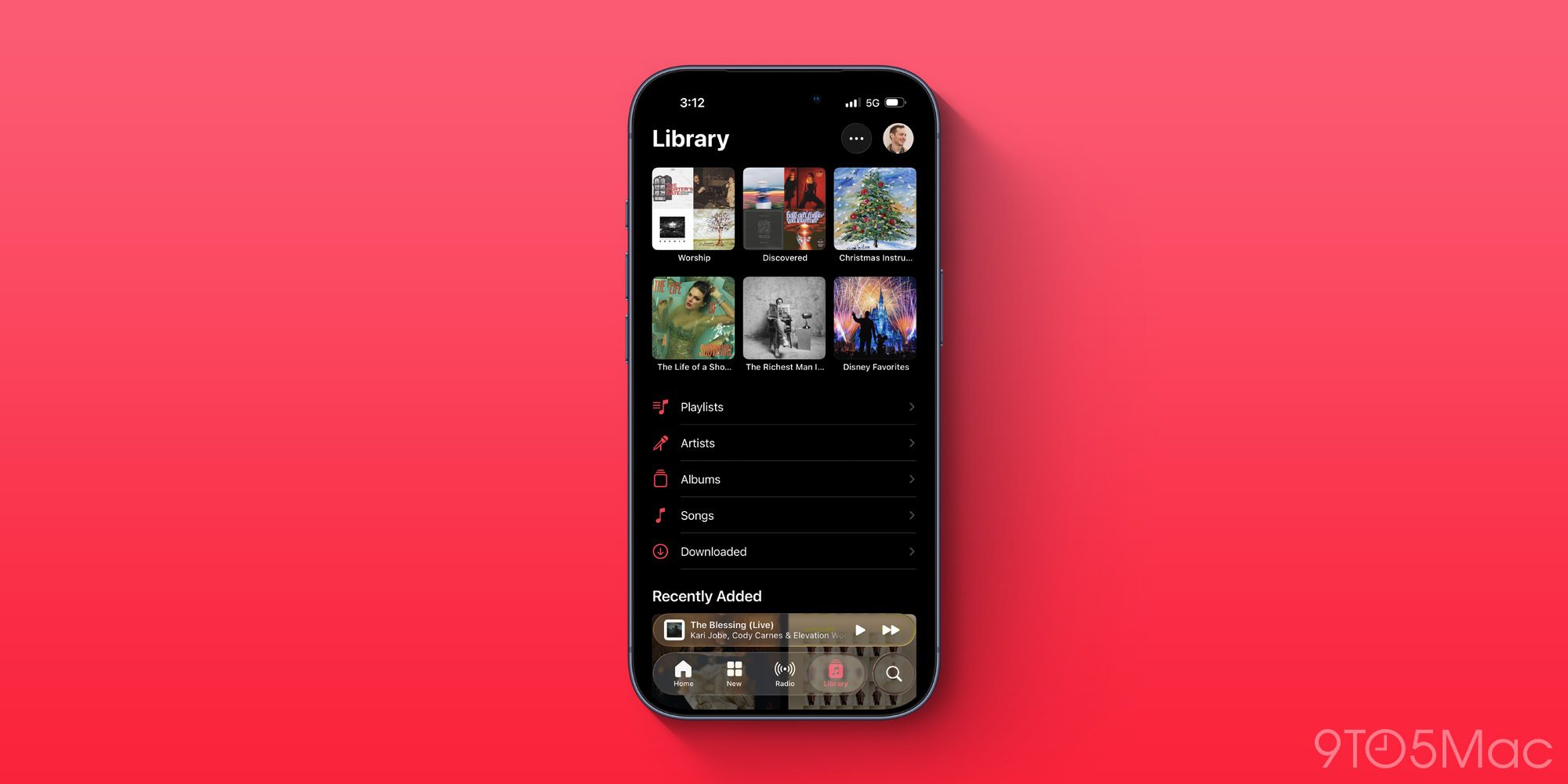
Apple Music provides access to over 100 million songs, and offers several ways to access that music, but one iOS 26 addition is a standout favorite.
You can now pin music to the top of your Library in the Music app for easy access.
Up to six titles can be pinned, and these can be playlists, artists, albums, or even individual songs.
Source: 9to5mac










