 NEWS
NEWS
Apple Makes Big eGPU Improvements in macOS 10.13.4
 01/26/2018
 3046
3046
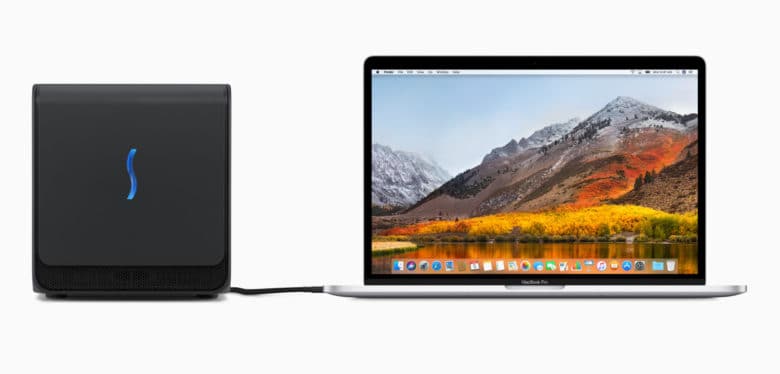
Apple rolled out its first macOS 10.13.4 beta on Wednesday, and testers have noticed big improvements to the way in which it handles eGPUs.
In addition to a new clamshell mode, it is now possible to connect and use an eGPU while a machine is already running.
Apple brought eGPU support to macOS with High Sierra, which rolled out last September. It’s only available on systems with Thunderbolt 3 connectivity, and it has some frustrating teething problems. Now Apple is working to fix those with macOS 10.13.4.
eGPU support is getting better
AppleInsider has tested eGPU support under Apple’s latest macOS beta and found a number of nice improvements.
One of the biggest is the ability to connect an eGPU to your system while you’re already logged into macOS. Previous versions of High Sierra required you to log out after connecting an eGPU, then log back in again before it could be used.
You also get the option to eject eGPUs from the menu bar in 10.13.4. This is another task you previously had to log out for.
Finally, Apple has improved clamshell mode, which was only partially present before. You can close a MacBook and continue to use an external monitor connected to your eGPU. This is the case for both mirrored mode and when using multiple desktops across multiple displays.
Closing the lid of your machine previously turned off the display if you had mirroring configured, or only allowed you to use one work space while another was still considered active on your MacBook’s display.
AppleInsider has confirmed these features work on the Sonnet eGFX Breakaway Puck with an AMD RX 560 graphics card, the Sonnet and AMD RX 580 developer’s kit, and the Mantiz MZ-02 with a Vega 56 graphics card. However, they should work with all eGPUs.
eGPU support is still a beta feature for now, but it will lose its beta tag this spring when macOS 10.13.4 is likely to make its public debut.
Source: cult of mac










