
NEWS

Apple Stops Signing iOS 11.3.1, Making Downgrade for Upcoming Electra Jailbreak Impossible

06/08/2018

4894

As you may already know by now, Ian Beer has released an exploit which is applicable to iOS 11.3.1 following the release of iOS 11.4 in which Apple patched this particular exploit.


CoolStar, who is developer of Electra, has already confirmed that he is going to update Electra jailbreak toolkit to support iOS 11.3.1 jailbreak on all devices including iPhone X.
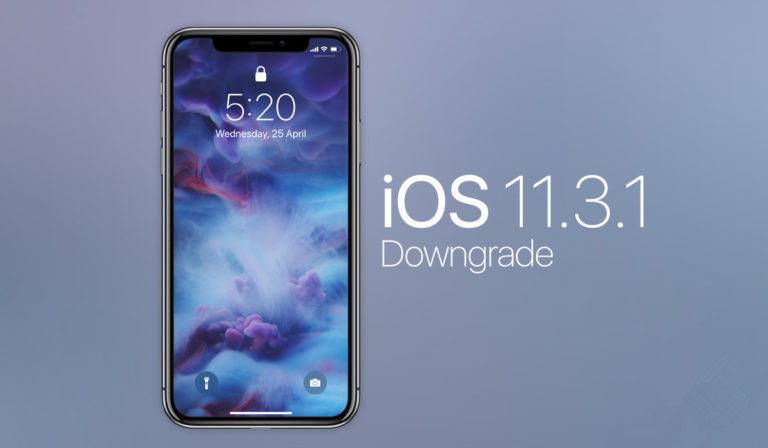

Apple Stops Signing iOS 11.3.1, Making Downgrade for Upcoming Electra Jailbreak Impossible


Apple today stopped signing iOS 11.3.1, making downgrade from any firmware above it impossible. This is obviously significant given those who are on iOS 11.4 or beta versions of iOS 11.4.1 and iOS 12 can now no longer get back iOS 11.3.1 for jailbreak purposes. 


It’s important to note however that if you took our advise in saving SHSH2 blobs while iOS 11.3.1 was still being signed and you are on a firmware like iOS 11.1.2 which can be jailbroken, then you can get to iOS 11.3.1 anytime using FutureRestore even after Apple has stopped signing that particular firmware.


Those of you who are on iOS 11.3.1, we will advise you to stick to that firmware as Electra jailbreak will soon be updated to support jailbreak on that firmware, complete with support for Cydia Installer and Substitute.


Source: redmond pie

Windows
Mac OS
iOS
Linux
3uTools
Win 64-bit For this device
V9.01 2025-12-27
Download
Win 32-bit For this device
V9.01 2025-12-27
Download
3uTools
Intel Chip How to Identify Chip Type
V9.01 2025-12-31
Download
Apple Silicon
V9.01 2025-12-31
Download
How to Identify Chip Type
1.  Click the Apple icon in the top-left corner of the screen and select About This Mac.
2.  Check the Processor or Chip field to determine if it is "Intel" or "Apple".
Please use the 3uTools PC client to install the iOS client:
1、 Install either the Windows or Mac version of 3uTools on your computer
2、 Open the PC client and connect your device to the computer via USB cable
3、 After the connection is successful, wait for the computer to automatically install the mobile app for the device, or locate “Install Mobile App” on the computer and manually click to install.
3uTools
deb file
V3.01 2025-11-20
Download
rpm file
V3.01 2025-11-20
Download
Windows
Windows
iOS
iOS
Android
Android
TV
TV
3uAirPlayer
Win 64-bit For this device
V6.0.2 2025-11-19
Download
Win 32-bit For this device
V6.0.2 2025-11-19
Download
iOS Device Mirroring (No App Required)
1、 Install 3uAirPlayer on the Windows PC
2、 Open Control Center and select Screen Mirroring
3、 From the list, choose your PC to start mirroring
4、 Or connect your iOS device to the PC via USB to begin mirroring
Scan to get "3uAirPlayer" App
3uAirPlayer TV V1.0.18
2025-11-28
TV System Requirements: Android 7.0 or later
Download the TV installation package, copy it to a USB drive, insert it into your TV or set-top box, then select the file from the home screen to install.




