NEWS

Google Shuts Down Nest app for Apple Watch and Wear OS

07/11/2019

2547

Google Shuts Down Nest app for Apple Watch and Wear OS

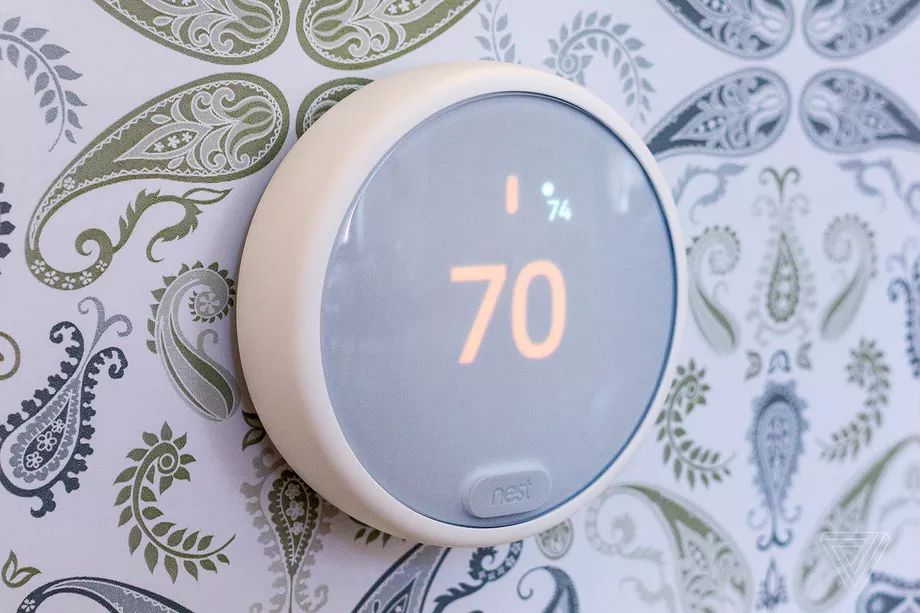
People take control of their smart thermostat from their wrist so infrequently that Google has decided to completely scrap its Nest app for both Apple Watch and the company’s own Wear OS platform. The smartwatch Nest app offered a quick way to adjust the thermostat’s target temperature or operating mode. But now it simply displays a “Nest is no longer supported on Wear OS” message when opened and instructs customers to uninstall it.


“We took a look at Nest app users on smartwatches and found that only a small number of people were using it,” a Google spokesperson told 9to5Google. “Moving forward our team will spend more time focusing on delivering high quality experiences through mobile apps and voice interactions.”


Is this some monumental loss? No, not really. You can still just pull out your phone and do those same things (and more) with the Nest mobile app on Android and iOS. Notifications from the Nest smartphone app will continue to show up on your watch. Plus, anyone with a Wear OS watch can use Google Assistant to control Nest devices with their voice. Apple Watch owners don’t have that fallback, however.


So even Google has concluded one of its own Wear OS apps — one that was a good example of a smartwatch’s convenience — just isn’t worth the effort any longer. It’s putting even less work into supporting the Apple Watch, with 9to5Google noting that Google Keep is the company’s last remaining watchOS app.


Source: Theverge

Windows
Mac OS
iOS
Linux
3uTools
Win 64-bit For this device
V9.01 2025-12-27
Download
Win 32-bit For this device
V9.01 2025-12-27
Download
3uTools
Intel Chip How to Identify Chip Type
V9.01 2025-12-31
Download
Apple Silicon
V9.01 2025-12-31
Download
How to Identify Chip Type
1.  Click the Apple icon in the top-left corner of the screen and select About This Mac.
2.  Check the Processor or Chip field to determine if it is "Intel" or "Apple".
Please use the 3uTools PC client to install the iOS client:
1、 Install either the Windows or Mac version of 3uTools on your computer
2、 Open the PC client and connect your device to the computer via USB cable
3、 After the connection is successful, wait for the computer to automatically install the mobile app for the device, or locate “Install Mobile App” on the computer and manually click to install.
3uTools
deb file
V3.01 2025-11-20
Download
rpm file
V3.01 2025-11-20
Download
Windows
Windows
iOS
iOS
Android
Android
TV
TV
3uAirPlayer
Win 64-bit For this device
V6.0.2 2025-11-19
Download
Win 32-bit For this device
V6.0.2 2025-11-19
Download
iOS Device Mirroring (No App Required)
1、 Install 3uAirPlayer on the Windows PC
2、 Open Control Center and select Screen Mirroring
3、 From the list, choose your PC to start mirroring
4、 Or connect your iOS device to the PC via USB to begin mirroring
Scan to get "3uAirPlayer" App
3uAirPlayer TV V1.0.18
2025-11-28
TV System Requirements: Android 7.0 or later
Download the TV installation package, copy it to a USB drive, insert it into your TV or set-top box, then select the file from the home screen to install.