
NEWS

Everything New in iOS 13 Beta 4: Quick Action Updates, Share Sheet Changes and More

07/18/2019

3047

Apple this morning released the fourth beta of iOS 13 for developers, introducing bug fixes and adding and refining iOS 13 features. 

Now that we're into the fourth beta, changes and updates are getting more minor, but there are still some small but notable tweaks that are worth highlighting in today's beta. 

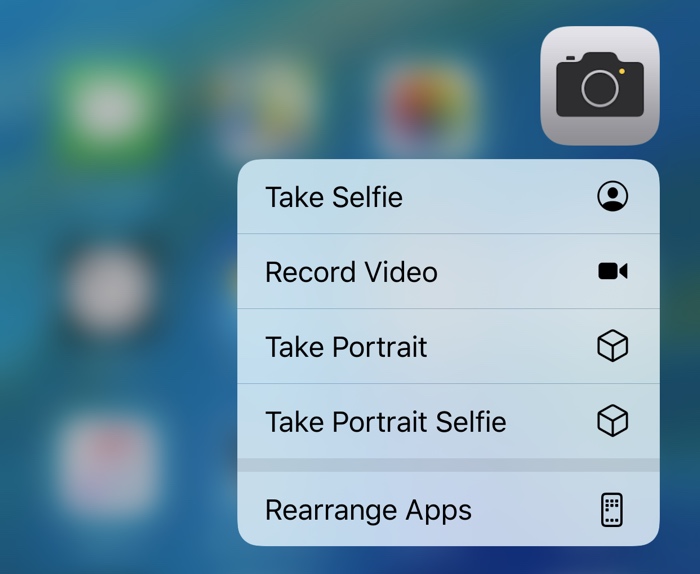
Quick Actions - There's a refreshed look for Quick Actions on the Home screen, which adds a new "Rearrange Apps" option that lets you quickly get to the wiggle mode that allows apps to be moved around. 
Everything New in iOS 13 Beta 4: Quick Action Updates, Share Sheet Changes and More
Quick Actions Menu Size - The menu that pops up when using a Quick Action is also smaller in size with less obtrusive icons that have also been relocated to the right side of the menu interface. 

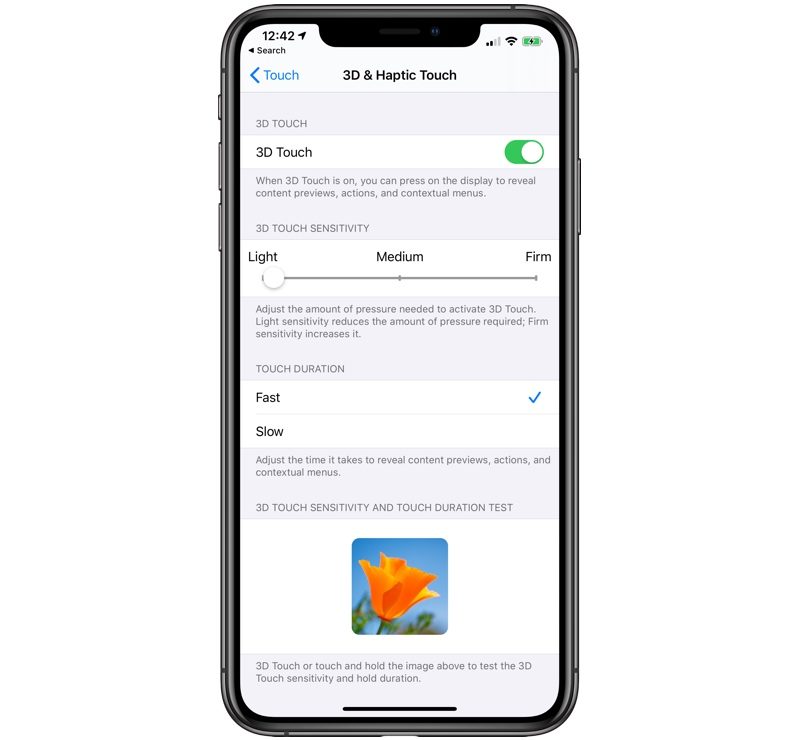
3D Touch Settings - In the Accessibility section of the Settings app, there are new options for 3D Touch in the 3D & Haptic Touch section (which was previously just 3D Touch). There's a new "Touch Duration" section alongside the sensitivity slider. The Touch Duration option changes the amount of time it takes to reveal content previews, actions, and contextual menus. 
Everything New in iOS 13 Beta 4: Quick Action Updates, Share Sheet Changes and More
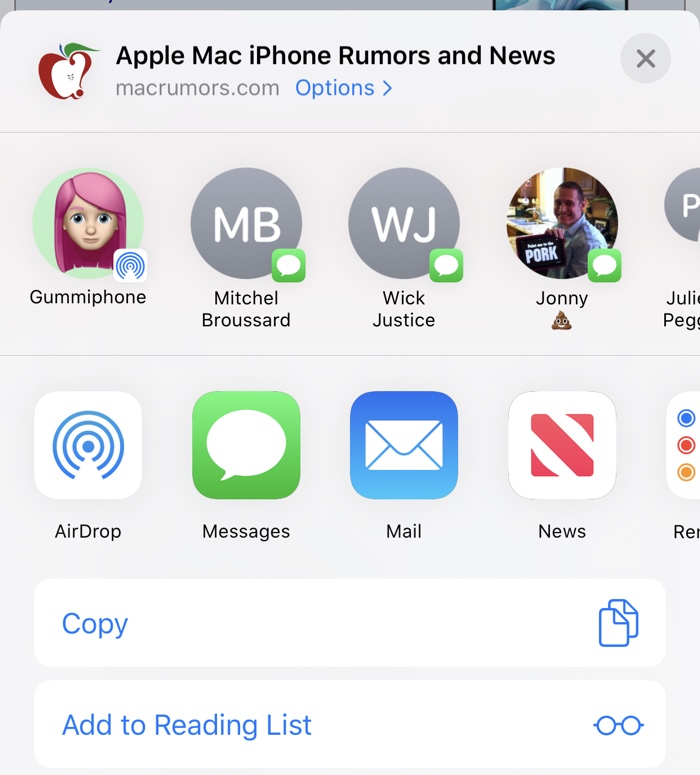
Share Sheet - Some minor design changes have been made to the Share Sheet in iOS 13, tweaking the colors and adding some transparency. 
Everything New in iOS 13 Beta 4: Quick Action Updates, Share Sheet Changes and More
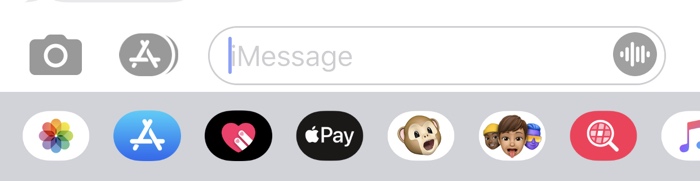
Voice Messages - When using the option in Messages to record a voice-based message, there's a new icon for the option. It's now a waveform rather than a microphone icon. 
Everything New in iOS 13 Beta 4: Quick Action Updates, Share Sheet Changes and More
Widgets - When editing Widgets in the Today View, you'll see a new look for the edit button, which is now pill-shaped rather than circular. 

Everything New in iOS 13 Beta 4: Quick Action Updates, Share Sheet Changes and More
Know of a feature that's new in iOS 13 beta 4 that we left out? Make sure to let us know in the comments and we'll update this article.


Source: MacRumors

Windows
Mac OS
iOS
Linux
3uTools
Win 64-bit For this device
V9.01 2025-12-27
Download
Win 32-bit For this device
V9.01 2025-12-27
Download
3uTools
Intel Chip How to Identify Chip Type
V9.01 2025-12-31
Download
Apple Silicon
V9.01 2025-12-31
Download
How to Identify Chip Type
1.  Click the Apple icon in the top-left corner of the screen and select About This Mac.
2.  Check the Processor or Chip field to determine if it is "Intel" or "Apple".
Please use the 3uTools PC client to install the iOS client:
1、 Install either the Windows or Mac version of 3uTools on your computer
2、 Open the PC client and connect your device to the computer via USB cable
3、 After the connection is successful, wait for the computer to automatically install the mobile app for the device, or locate “Install Mobile App” on the computer and manually click to install.
3uTools
deb file
V3.01 2025-11-20
Download
rpm file
V3.01 2025-11-20
Download
Windows
Windows
iOS
iOS
Android
Android
TV
TV
3uAirPlayer
Win 64-bit For this device
V6.0.2 2025-11-19
Download
Win 32-bit For this device
V6.0.2 2025-11-19
Download
iOS Device Mirroring (No App Required)
1、 Install 3uAirPlayer on the Windows PC
2、 Open Control Center and select Screen Mirroring
3、 From the list, choose your PC to start mirroring
4、 Or connect your iOS device to the PC via USB to begin mirroring
Scan to get "3uAirPlayer" App
3uAirPlayer TV V1.0.18
2025-11-28
TV System Requirements: Android 7.0 or later
Download the TV installation package, copy it to a USB drive, insert it into your TV or set-top box, then select the file from the home screen to install.




