 NEWS
NEWS
The Feature That Will Likely Have Me Buy the iPhone 11
 07/25/2019
 3082
3082
I didn’t think I’d be very likely to buy the iPhone 11. My plan to date has been to hold out another year with my iPhone X.
The iPhone XS didn’t offer enough to persuade me to upgrade last year, and the rumors to date for this year have made the 2019 iPhones sound rather like another S year. With a much bigger update likely in 2020, including 5G support, the sensible plan seemed to be to wait until then.
But something we learned yesterday through a 9to5Mac exclusive will likely be enough to persuade me to upgrade this year …
Namely, that the third camera, a wide-angle one, will have some rather interesting software support.
This extra space will be occupied by a camera capable of capturing a wide-angle image as Bloomberg first reported.
Besides being used as a creative option for pictures and movies, this wide-angle ‘iPhone 11’ camera will enable a feature called Smart Frame, which captures the area around the framed area in pictures and videos so that the user can adjust the framing or perform automatic perspective and crop corrections in post. The extra information will be retained for a limited period of time and discarded automatically afterwards, for privacy reasons.
I said soon after I first got it that I was incredibly impressed by the iPhone X camera. So much so that my iPhone is my standard camera. It takes quite a lot now for me to use a dedicated camera, like visiting a new city for the first time. But on a recent trip to Boston — somewhere I’ve been a couple of times before — I just used my iPhone.
Given that my phone is my primary camera, then any significant new camera feature will always be tempting. Indeed, the ability to adjust the apparent depth of field after taking a photo was the one iPhone XS feature which I found somewhat tempting. Smart HDR and increased dynamic range in video were two other XS features which caught my eye.
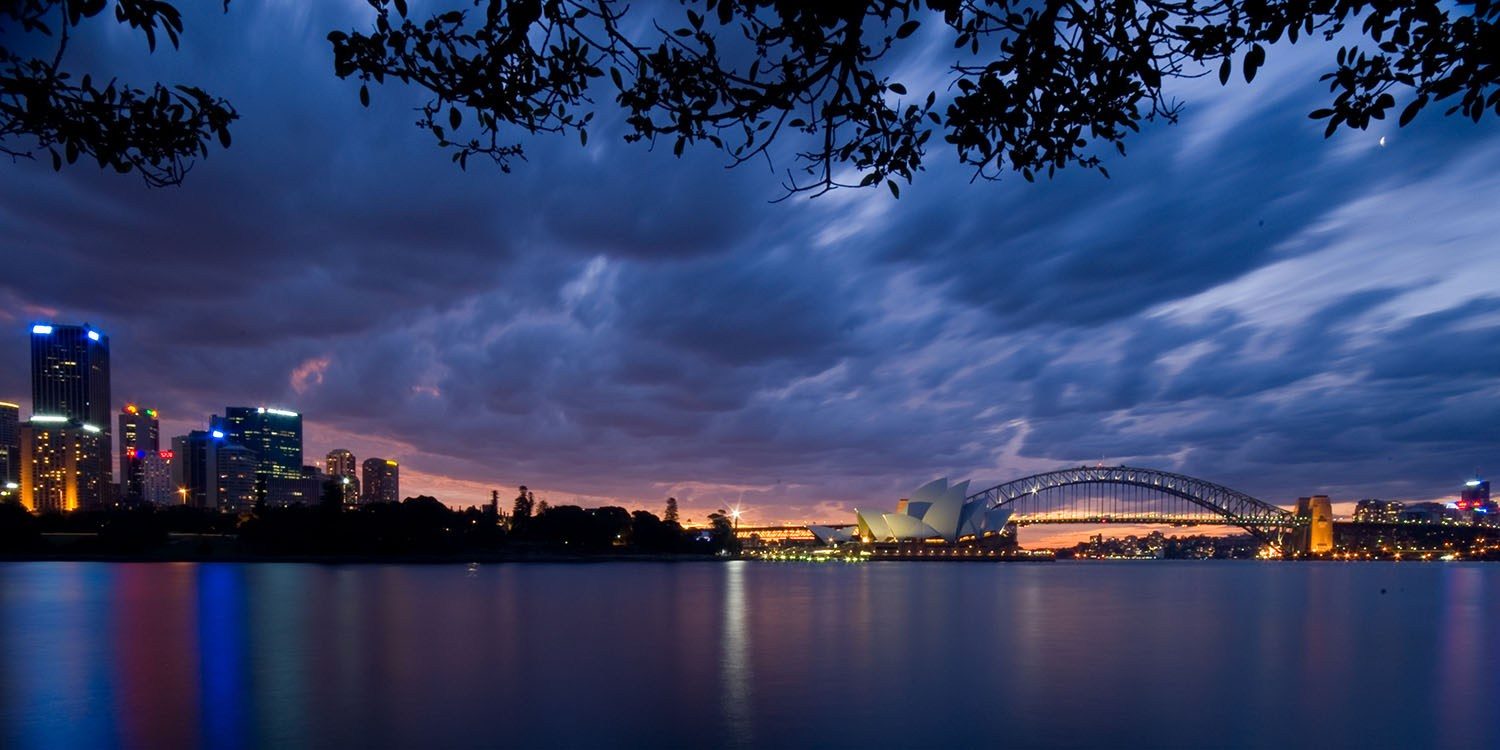
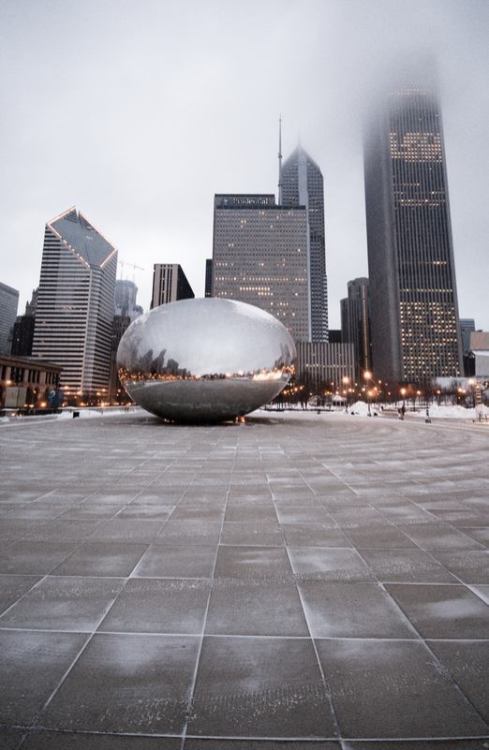
A wide-angle lens was the one missing camera feature for me. The photo above, and the gallery below, are all shots taken with a wide-angle lens (in this case a Sigma 10-20mm on a Nikon D3). None of those shots would have been possible on any current iPhone.
Adding a wide-angle lens would make the iPhone a much more versatile camera. But wide-angle shots do come with a drawback: distortion. At the extreme end, of a fish-eye lens, that distortion is dramatic, making horizons look seriously curved.
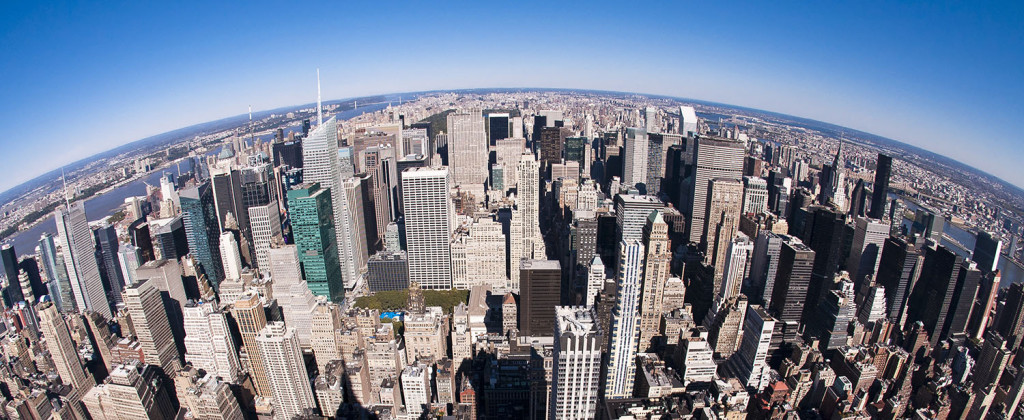
But any wide-angle lens introduces distortion. You might like the effect (it’s an artistic choice), but generally you’ll need to correct it in something like Photoshop.
And it’s that which this year’s iPhones appear to be automating.
If my reading of that is correct, it will be optional — applied after you take the photo, if you want it — but automatic.
Coupled to the impressive low-light capabilities the iPhone camera has, and the artificial depth-of-field control, there’s really very little you wouldn’t be able to do with the iPhone. It’s at this point that I might consider leaving a standalone camera at home even when traveling somewhere new for the first time.
I’ll of course need to try it out myself, but assuming it works well, I think I’m going to find ‘buy the iPhone 11’ on my to-do list this year.
Source: 9to5mac










