 NEWS
NEWS
Microsoft Rolling out Dark Mode Support to all Office Apps in Time for iOS 13
 08/29/2019
 3070
3070
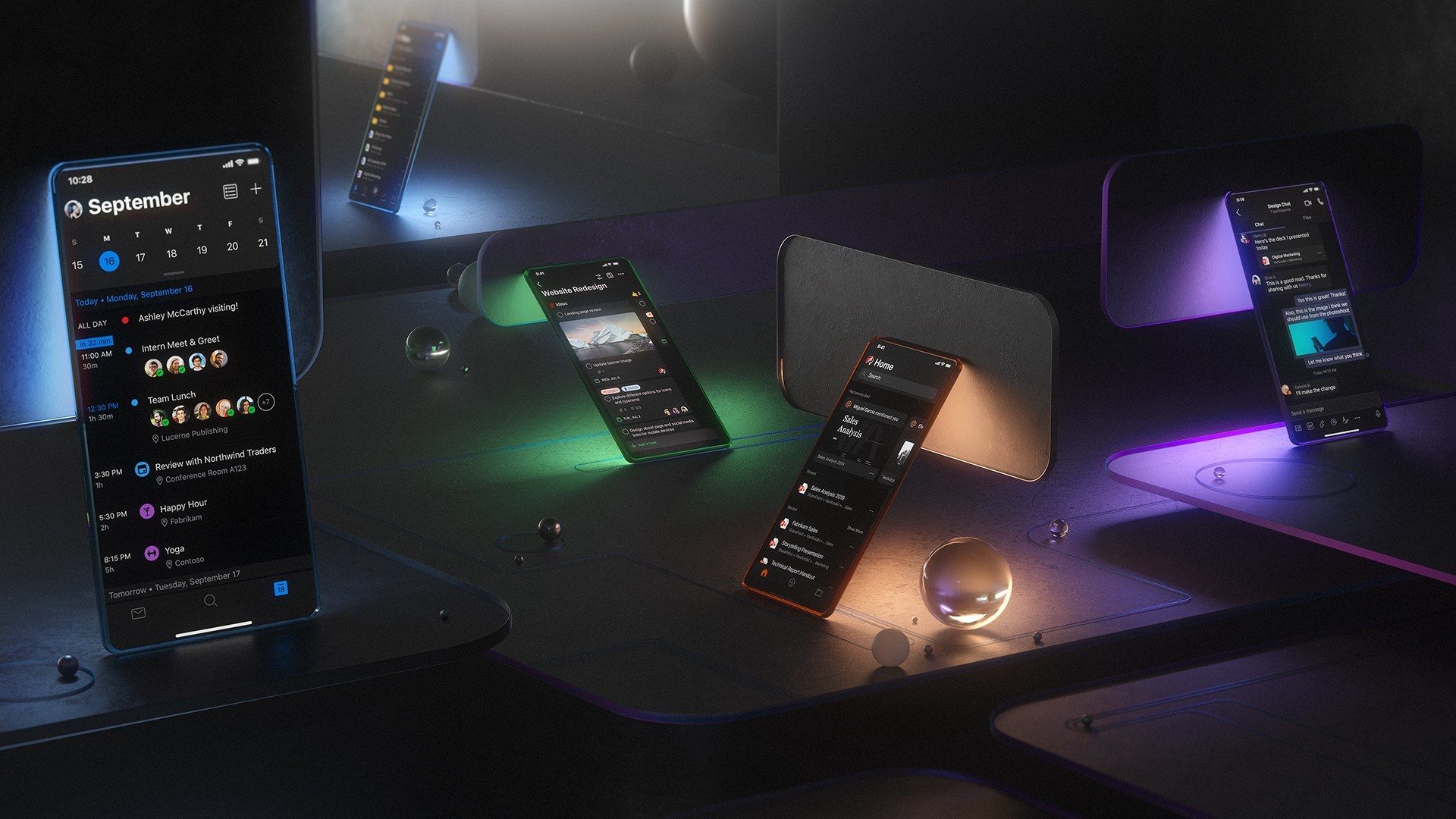
Microsoft announced today that it is starting to roll out Dark Mode support to the Outlook application on iOS. The company has also committed to rolling out Dark Mode to all of the Office applications on iOS ahead of the release of iOS 13 next month, which is the first to include a system-wide Dark Mode.
In a blog post, Microsoft’s Jon Friedman offered details on the company’s design thought process for Dark Mode for Outlook. Specifically, the company focused on how Dark Mode can reduce eye strain:
Our design research specifically focused on these contexts where folks would want to use Dark Mode, and the response was very positive. While some Dark Mode experiences can be neon or overly bright, people felt that Outlook mobile kept the kind of relaxed feeling you might want in a dimly lit living room or bedroom.
They described the experience as comfortable, crisp, clear, and aesthetically pleasing, a nod to how Dark Mode can reduce eye strain.
Microsoft also said that adding Dark Mode to its Office applications on iOS hasn’t been a quick process. According to Friedman, Microsoft started “from the ground up” and worked to ensure design teams were “aligning to the single palette.”
In addition to Outlook, Dark Mode will also come to Word, Excel, and Powerpoint on iOS with the launch of iOS 13 and iPadOS 13. Furthermore, Dark Mode will soon come to SharePoint, OneDrive, Planner, and To-Do on iOS as well.
The Office apps on iOS will also be able to automatically switch between light and dark designs, depending on the system-wide setting you have selected. This ensures full support of Apple’s system-wide settings for Dark Mode on iPhone and iPad.
Microsoft says the update to Outlook on iOS will start to roll out today, though it doesn’t yet seem to be live on the App Store.
Source: 9to5Mac










