 NEWS
NEWS
Apple iOS 13 Launch Confirmed: 5 iPhone Security Features
 09/02/2019
 2761
2761
Apple had a tough August, with iPhone security warnings and revelations that Siri requests were being listened to by external contractors. It comes at a time when the firm was trying to differentiate itself from Facebook and Google as the tech company that cares about your privacy.
Apple is already responding to repair the damage: Last week, it confirmed that Siri recordings would be opt-in only.
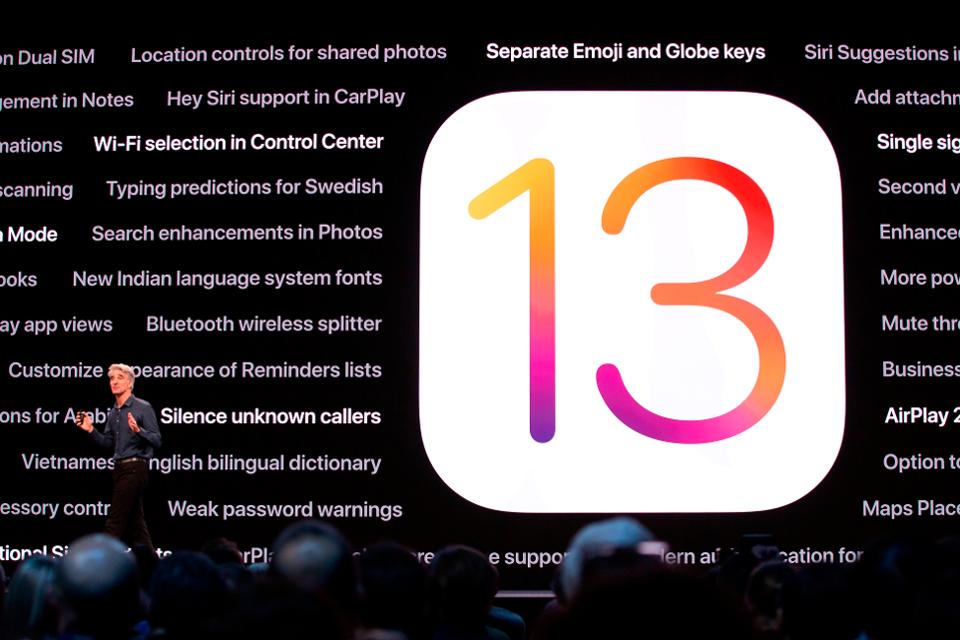
And September could be a good month for Apple. Along with new iPhones, iOS 13 is likely to be coming in the days following September 10 with a number of massive security improvements.
So, what are the top five security improvements coming to Apple’s iOS operating system this fall?
iOS 13 won’t let apps run VoIP in the background
One of the biggest improvements, in my opinion, is a blow by Apple to Facebook and WhatsApp. The security-enhanced iOS 13 will not let these apps run in the background when programs aren’t actively in use. Apps such as these claim they need to run in the background so they can connect calls quickly. However, they also collect information on what you are doing on your device.
iOS 13 will send alerts about apps that track your location
Location tracking is another security and privacy infringement, and iOS 13 will let you know which apps are doing this in the background. Apple is doing so proactively: It will pop up with a reminder about which apps are tracking you and tell you how many times this has happened. It will even show a map of where you have been tracked, along with the option to allow or limit it.
iOS 13 lets you allow location just once
On the theme of location tracking, Apple iOS 13 will also include a feature that allows you to let an app access your location just once. It stops apps from tracking you in the background without your knowledge. So, if you download a new app that requires your location, you can allow it just for that instance.
iOS 13 allows you to prevent or limit Bluetooth and WiFi tracking
As well as adding features that stop apps from tracking you via GPS, Apple is also preventing the Bluetooth and WiFi tracking used by some app makers in iOS 13. Some apps, such as those for smart watches, will need access to Bluetooth to connect to your phone. However, others don’t, and now they will need to ask for your consent.
Sign In With Apple makes you safer online
Perhaps not one that you’ve missed, but it’s a big change worth mentioning: Sign in with Apple is a security enhancement that’s already attracted a lot of attention. Any app that requires you to sign in must offer this new Apple option, which allows you to use a private email generated by Apple to protect your privacy. Not everyone has been happy about this option, but for users, it really is a win-win.
Source: forbes










