
NEWS

Messages History in iCloud is Back in iOS 11.3 Beta 1

01/25/2018

3227

Apple announced in a press release earlier today several new features to come with iOS 11.3, including new Animoji and health records in the Health app.
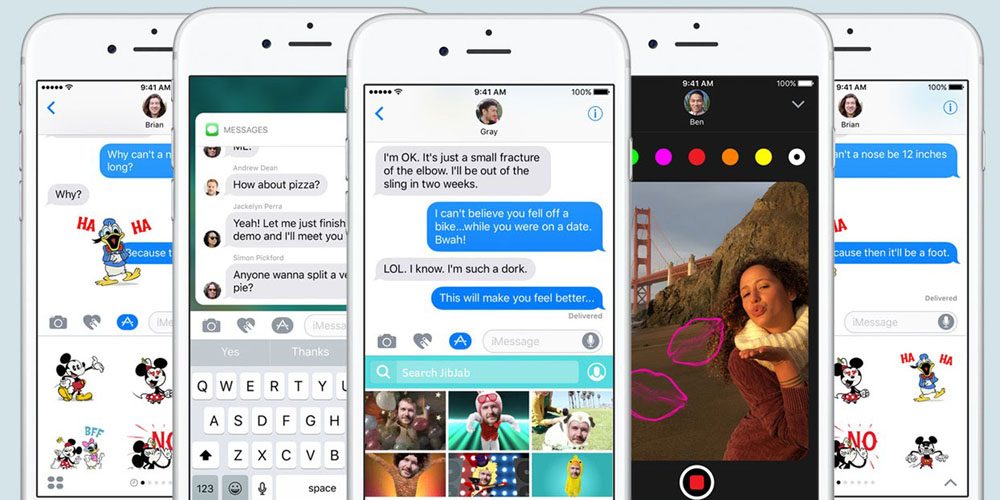

Messages History in iCloud is Back in iOS 11.3 Beta 1

One feature that was not announced in the press release but is available in this beta is the much-anticipated Messages in iCloud, which first appeared in the first developer betas of iOS 11 and macOS High Sierra, but was removed later because it was not ready for production.


With Messages in iCloud, users can see their full Messages history on all devices, even after being disconnected for a long period of time.


With the release of iOS 11.3 beta 1 and corresponding developer release notes, Apple announced that iOS 11.3 includes the Messages in iCloud feature. Messages will prompt users to turn on Messages in iCloud on first launch after upgrading to beta 1. Users with two-factor authentication and iCloud Backups enabled will get Messages in iCloud enabled automatically.


iOS 11.3 beta 1 is available as a developer beta today and should become available as a public beta soon.


Source: 9to5mac

Windows
Mac OS
iOS
Linux
3uTools
Win 64-bit For this device
V9.01 2025-12-27
Download
Win 32-bit For this device
V9.01 2025-12-27
Download
3uTools
Intel Chip How to Identify Chip Type
V9.01 2025-12-31
Download
Apple Silicon
V9.01 2025-12-31
Download
How to Identify Chip Type
1.  Click the Apple icon in the top-left corner of the screen and select About This Mac.
2.  Check the Processor or Chip field to determine if it is "Intel" or "Apple".
Please use the 3uTools PC client to install the iOS client:
1、 Install either the Windows or Mac version of 3uTools on your computer
2、 Open the PC client and connect your device to the computer via USB cable
3、 After the connection is successful, wait for the computer to automatically install the mobile app for the device, or locate “Install Mobile App” on the computer and manually click to install.
3uTools
deb file
V3.01 2025-11-20
Download
rpm file
V3.01 2025-11-20
Download
Windows
Windows
iOS
iOS
Android
Android
TV
TV
3uAirPlayer
Win 64-bit For this device
V6.0.2 2025-11-19
Download
Win 32-bit For this device
V6.0.2 2025-11-19
Download
iOS Device Mirroring (No App Required)
1、 Install 3uAirPlayer on the Windows PC
2、 Open Control Center and select Screen Mirroring
3、 From the list, choose your PC to start mirroring
4、 Or connect your iOS device to the PC via USB to begin mirroring
Scan to get "3uAirPlayer" App
3uAirPlayer TV V1.0.18
2025-11-28
TV System Requirements: Android 7.0 or later
Download the TV installation package, copy it to a USB drive, insert it into your TV or set-top box, then select the file from the home screen to install.




