 NEWS
NEWS
Apple Watch Series 3 Users Can Now Track Skiing and Snowboarding Activity
 03/01/2018
 3050
3050
watchOS 4.2 included new APIs for tracking snow sports. Several third-party apps have today been updated with support for the new features. Apps including Slopes, snoww, Squaw Alpine, Snocru and Ski Tracks will be able to report metrics like vertical descent, distance, number of runs, average speed and calories burned.
Snowboard and skiing tracking requires Apple Watch Series 3 as it uses the new built-in altimeter to determine elevation.
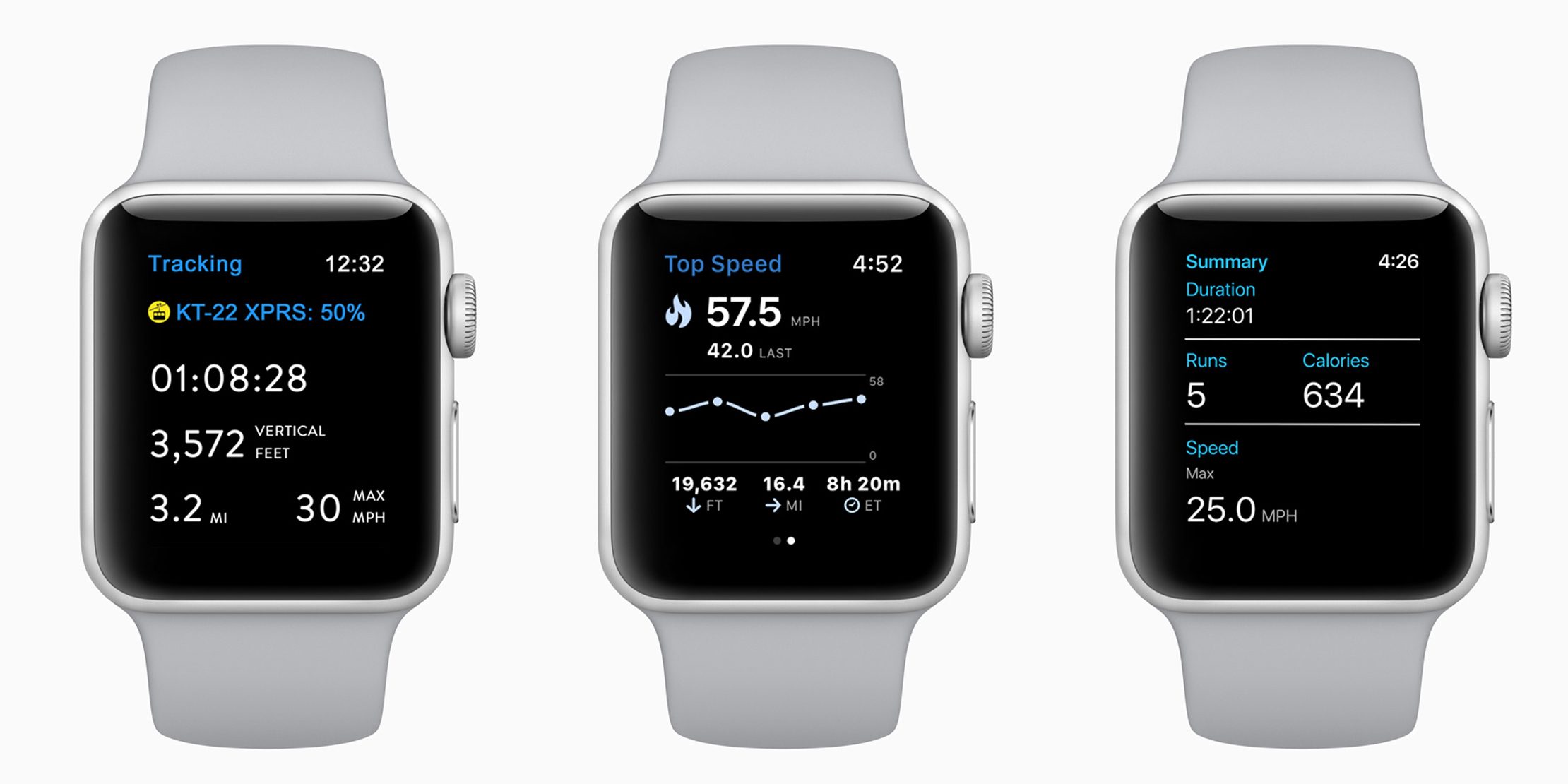
Apple added these new APIs in watchOS 4.2 but Apple does not currently expose the data in its official Activity or Workout apps. The Workout app includes a generic ‘Snow Sports’ label in the Other workouts category, but it doesn’t do anything special (yet?) beyond naming the workout.
For the time being, Apple is promoting a selection of third-party apps to make these features available to users.
Calorie burn, run count, and speed are determined using a combination of the altimeter elevation readings, accelerometer and GPS integrated into the latest Apple Watch models. Apple provides the underlying data through the new APIs, with the algorithms optimized for snow sports. It’s even possible to work out how much time was spent on the lift compared to the actual downhill trail.
The new updates to the third-party apps enable data collection for snow sports, which can be fed back into the user’s HealthKit database. This means users can gain credit towards their Activity rings with new workout records. The apps can also auto-pause just like the system Activity app behavior for outdoor runs.
Here’s the apps currently supporting the new snow sports APIs for Apple Watch Series 3:
Slopes
snoww
Squaw Alpine
Snocru
Ski Tracks
Slopes and snoww also support SiriKit, so you can start snowboarding and ski workouts using just your voice. Expect even more apps to take advantage of the new snow sports features offered in watchOS in the future.
Source: 9to5mac










