
NEWS

What's New in iOS 11.4 Beta 3: Auto-Updating Volume Icon and 3D Touch Fixes

05/02/2018

2458

As iOS 11.4 gets closer to its eventual release, fewer and fewer new features make an appearance in each iterative beta. The third incarnation of iOS 11.4 beta contains only two real user-facing differences worth exploring, relating to volume control and 3D Touch. 
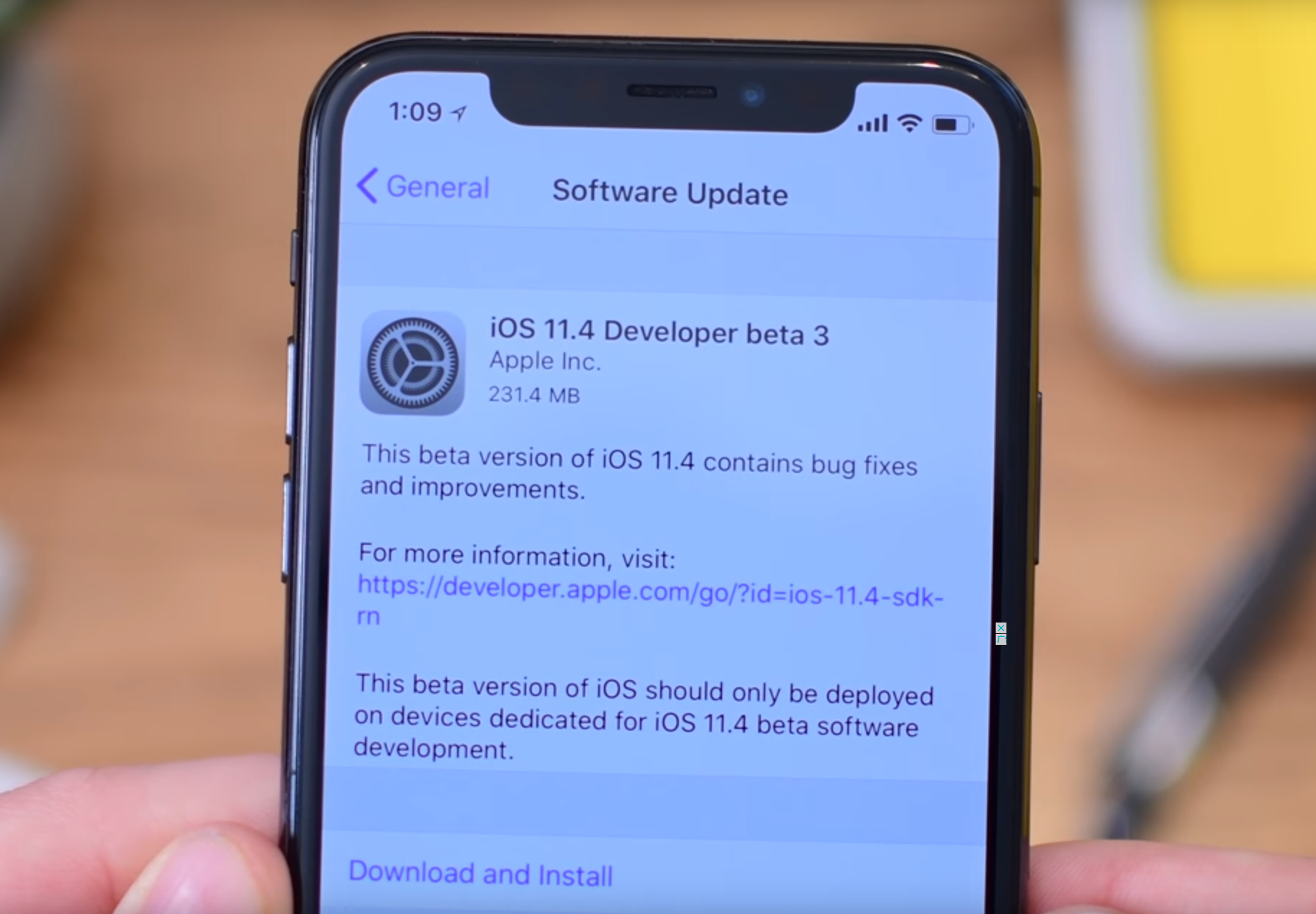

What's New in iOS 11.4 Beta 3: Auto-Updating Volume Icon and 3D Touch Fixes


The first notable change is a bug fix related to 3D Touch. Many users previously reported issues using 3D Touch on the Home screen right after unlocking their device, but it appears to no longer be the case in the latest beta.


The second concerns the volume slider insider of Control Center desynchronizing with the device's current volume. Once more, the icon indicates the current volume, with it changing to match the raised or lowered output. 


Performance-wise, we see no real change between the second and third betas. A benchmark test using GeekBench showed the latest release as being slightly slower from last time, but nothing majorly irregular. Aside from beta-to-beta benchmarks, there is also a degree of variance expected between tests using the same settings, so there is seemingly little to be concerned about here. 


While changes to battery life under the third beta is as yet unknown, it is unlikely to change. The last few weeks running the second beta showed no noticeable changes to the rate the battery depletes, with an iPhone X running smoothly and lasting practically a full day, as expected. 


Alongside iOS 11.4 beta three, Apple also released the third betas of macOS 10.13.5, tvOS 11.4, and watchOS 4.3.1.


Source: appleinsider


Windows
Mac OS
iOS
Linux
3uTools
Win 64-bit For this device
V9.01 2025-12-27
Download
Win 32-bit For this device
V9.01 2025-12-27
Download
3uTools
Intel Chip How to Identify Chip Type
V9.01 2025-12-31
Download
Apple Silicon
V9.01 2025-12-31
Download
How to Identify Chip Type
1.  Click the Apple icon in the top-left corner of the screen and select About This Mac.
2.  Check the Processor or Chip field to determine if it is "Intel" or "Apple".
Please use the 3uTools PC client to install the iOS client:
1、 Install either the Windows or Mac version of 3uTools on your computer
2、 Open the PC client and connect your device to the computer via USB cable
3、 After the connection is successful, wait for the computer to automatically install the mobile app for the device, or locate “Install Mobile App” on the computer and manually click to install.
3uTools
deb file
V3.01 2025-11-20
Download
rpm file
V3.01 2025-11-20
Download
Windows
Windows
iOS
iOS
Android
Android
TV
TV
3uAirPlayer
Win 64-bit For this device
V6.0.2 2025-11-19
Download
Win 32-bit For this device
V6.0.2 2025-11-19
Download
iOS Device Mirroring (No App Required)
1、 Install 3uAirPlayer on the Windows PC
2、 Open Control Center and select Screen Mirroring
3、 From the list, choose your PC to start mirroring
4、 Or connect your iOS device to the PC via USB to begin mirroring
Scan to get "3uAirPlayer" App
3uAirPlayer TV V1.0.18
2025-11-28
TV System Requirements: Android 7.0 or later
Download the TV installation package, copy it to a USB drive, insert it into your TV or set-top box, then select the file from the home screen to install.




