 NEWS
NEWS
Users can’t Sign into Gmail in Mail after Latest macOS Update
 03/28/2019
 4550
4550
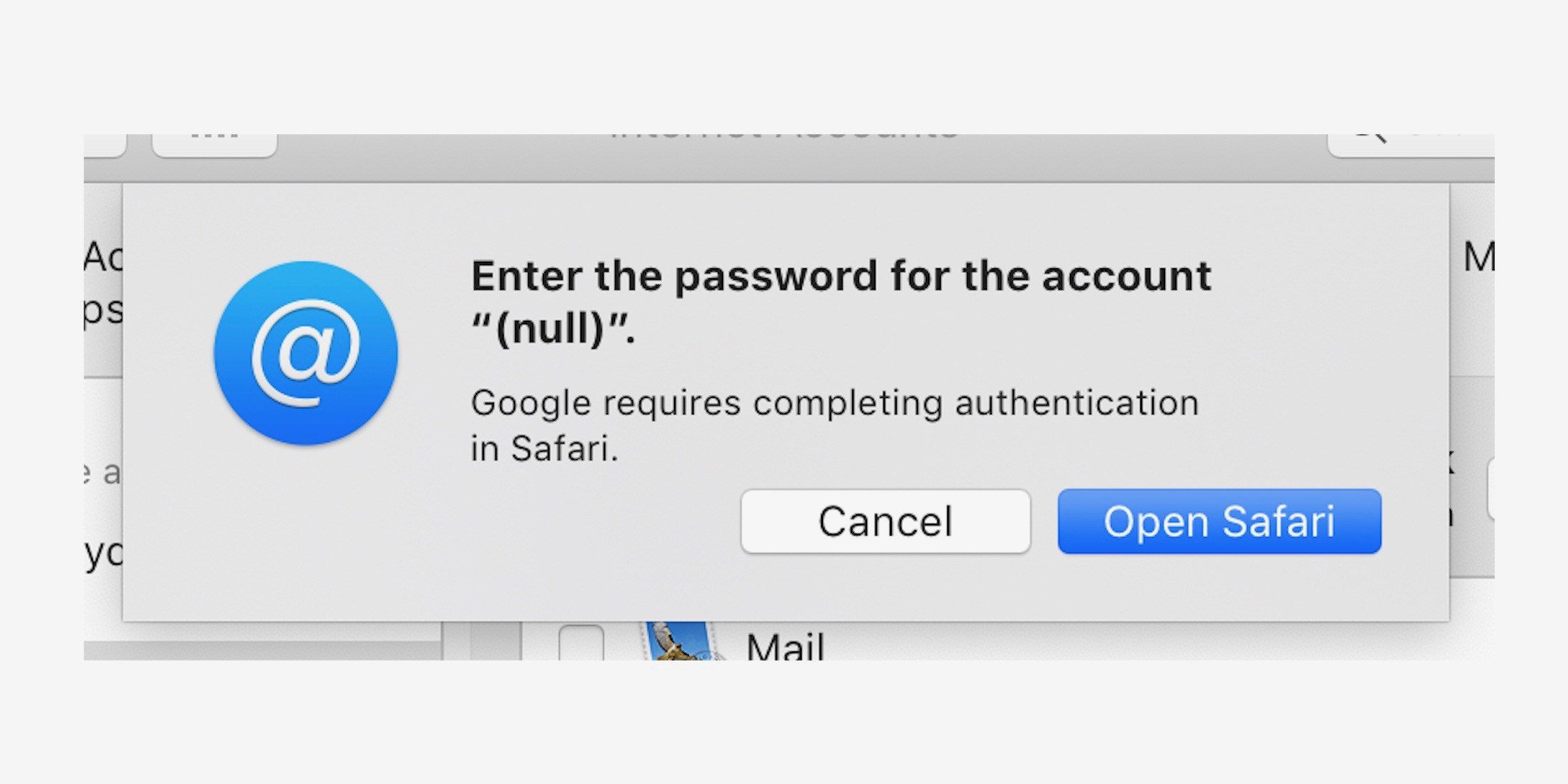
Apple yesterday released macOS 10.14.4 to the public with features such as automatic Dark Mode in Safari, Apple News+, and more. On the other hand, the update also seems to include one frustrating bug related to authenticating Gmail accounts through Apple Mail.
According to a growing number of complaints on the Apple Support Forums, macOS 10.14.4 breaks the process of authenticating a Gmail account. Essentially, trying to log-in to a Google account puts users through an endless loop, bouncing between macOS and Google’s sign-in page in Safari.
One user explains the problem on Apple’s forum like this:
"The issue puts me in an endless loop. I get a notification “Google requires completing authentication in Safari.” This takes me to a Sign in dialog where I enter email account and password. Password is correct and accepted, after which I’m back in the loop again asking to enter Google Password."
"If I login to my Google account in Safari I can see the recent events that I signed in without any problems on this Mac, but Apple Mail does NOT connect and I am back in the endless loop."
Further, the sign-in problems appear to apply strictly to the Apple Mail app. Other apps that rely on Google information, such as Calendar, are not affected by this issue in most cases. Some of the things users have done while trying to resolve the problem include removing and re-adding accounts, changing passwords, removing two-step, and more, all without success.
The problem doesn’t seem to be unique to adding new accounts to Mail on macOS, but also affects existing accounts. Upon rebooting from installing the update, users are being prompted to authenticate their Google account again, which places them in the aforementioned loop.
Other users have also reported issues adding new Google accounts to the Mail app on iOS 12.2, while macOS might return sign-in credentials as failed. This issue seems to affect only Google Apps accounts. The macOS 10.14.4 endless loop issue appears to be more widespread and affects Gmail accounts in general. Either way, it’s clear there is something wonky going in the communication between Apple and Google on this.
It’s unclear if this bug is affecting everyone who is running macOS 10.14.4, or just a subset. Nonetheless, if you rely on Google accounts in Apple Mail, it might be wise to hold off on updating to macOS 10.14.4 until Apple addresses the authentication problems. Read the full Apple Support thread here.
Source: 9to5mac










