 NEWS
NEWS
Apple Patches iOS App Store Bug that was Preventing App Downloads
 04/26/2019
 2809
2809
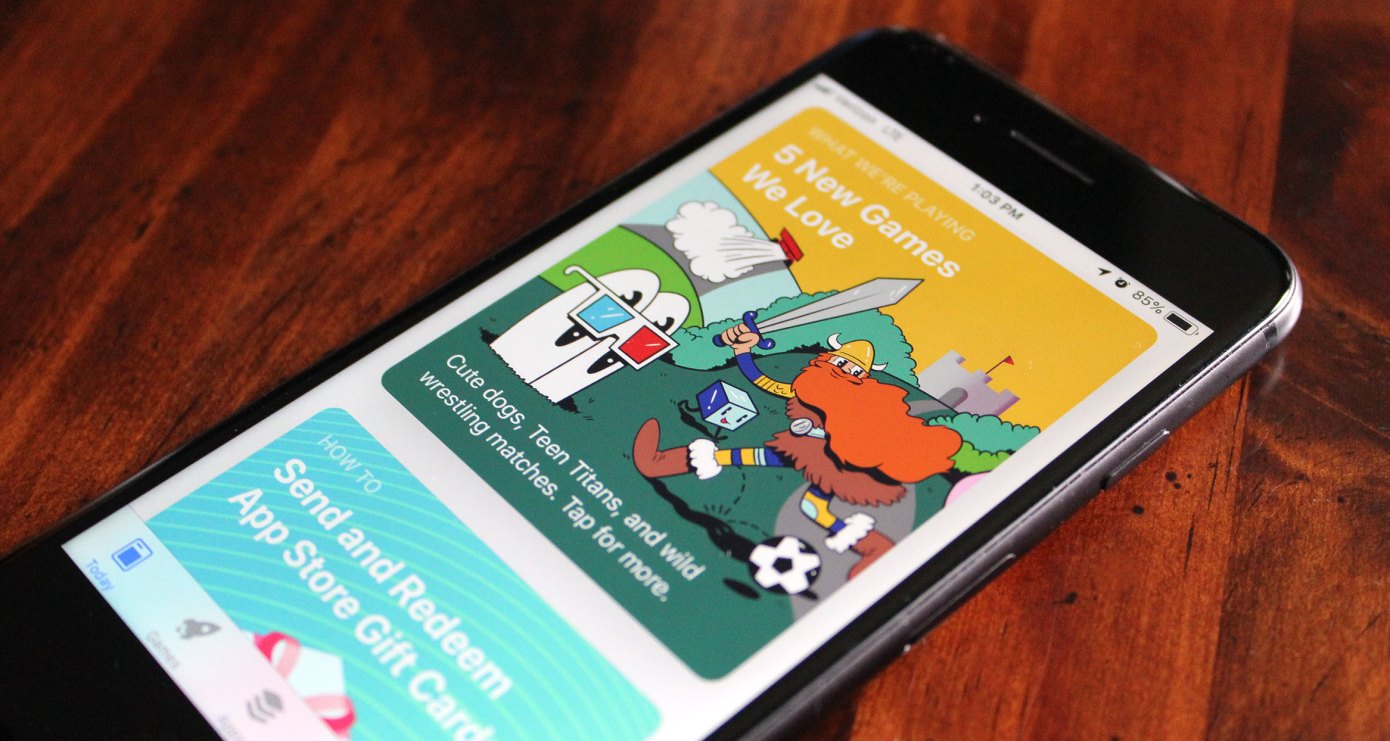
Apple is rolling out a fix for an App Store bug that was preventing users from downloading new iOS apps or app updates. The issue, which impacted an unknown number of users, involved a Terms & Conditions dialog box that would continue to pop up even when users tapped the “Agree” button.
The issue had frustrated users who took to Twitter in an attempt to get help from Apple Support.
9to5Mac and AppleInsider previously reported on the problem, citing the social media complaints. The Apple Support account had not responded publicly to those who reached out, beyond asking customers to get in touch on DM with more details or pointing those with more vague complaints to a support doc about connection issues.
The bug was affecting a small percentage of Apple’s iOS user base worldwide, we understand from people familiar with the problem at Apple. However, even a “small number” can be large, when you’re dealing with something like the iPhone install base.
In addition, the bug wasn’t limited to an unreleased developer or beta build of iOS, 9to5Mac had noted — but was also showing up on the public release (iOS 12.2).
There was no workaround that would allow users to skip the Terms & Condition pop-up in order to download apps and updates. All users could do was tap “Cancel” to get out of the loop so they could continue to use their phone.
We understand that Apple has now deployed a fix for the bug that should finish rolling out in a matter of hours.
The bug fix won’t require impacted users to take any steps on their own — like downloading an update or patch, for example. It will instead be resolved on the App Store’s backend.
Source: techcrunch










