NEWS

Telegram for iOS Adds Silent Message and Dark Mode

08/12/2019

2957

Telegram for iOS Adds Silent Message and Dark Mode


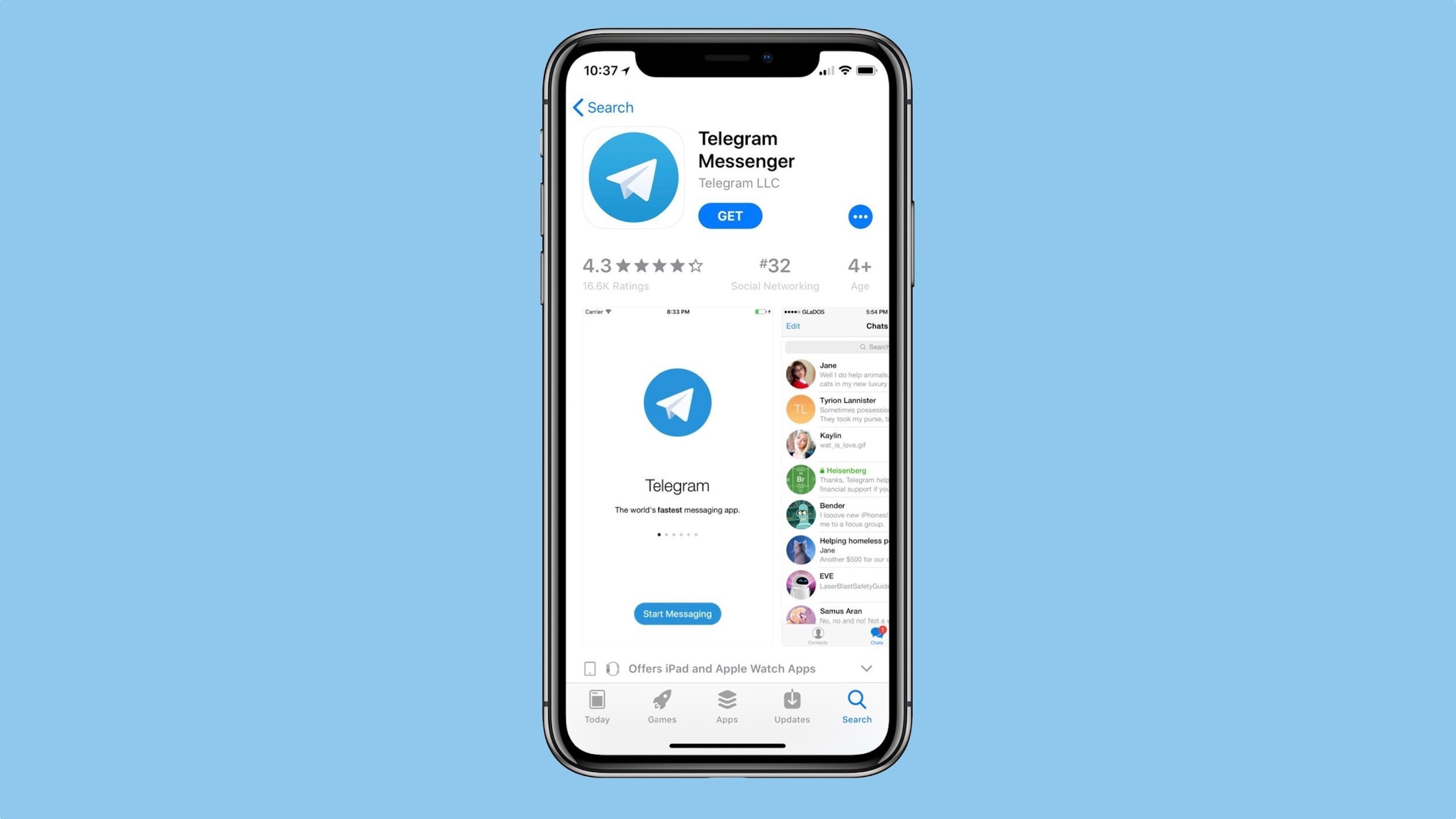
Telegram for iOS has been updated this weekend with a handful of notable new features. The update includes enhancements to dark themes, a new Silent Messages feature, and more.


One interesting new feature in Telegram for iOS is Silent Message. This lets you send a message to someone without sound, regardless of the notification settings on their device. The recipient will get a notification as usual, but without any sort of sound.


Slow Mode is a new feature for group chats, allowing an admin to limit people to sending one message per the interval they choose. For instance, the admin could set it so that people could only send one message every 30 seconds.


If you use the Night Mode feature of Telegram, there’s also new accent colors – allowing to you customize night themes to your liking.


Here’s the full change log for Telegram version 5.10:


Hold the Send button to send any message without sound – in case the recipient is sleeping.


Enable Slow Mode in Group Permissions to control how frequently members can post.


Set custom titles for group admins – like ‘Founder’, ‘CFO’ or ‘Spam Fighter’.


Choose different accent colors for dark themes in Settings > Appearance.


Toggle looped playback for animated stickers in Settings > Stickers.


Send a single :heart: :thumbsup: :meh: :wow or :party: emoji to add a mighty animated emoji to the chat.


Telgram is available on the App Store as a free download.


Source: 9to5mac

Windows
Mac OS
iOS
Linux
3uTools
Win 64-bit For this device
V9.01 2025-12-27
Download
Win 32-bit For this device
V9.01 2025-12-27
Download
3uTools
Intel Chip How to Identify Chip Type
V9.01 2025-12-31
Download
Apple Silicon
V9.01 2025-12-31
Download
How to Identify Chip Type
1.  Click the Apple icon in the top-left corner of the screen and select About This Mac.
2.  Check the Processor or Chip field to determine if it is "Intel" or "Apple".
Please use the 3uTools PC client to install the iOS client:
1、 Install either the Windows or Mac version of 3uTools on your computer
2、 Open the PC client and connect your device to the computer via USB cable
3、 After the connection is successful, wait for the computer to automatically install the mobile app for the device, or locate “Install Mobile App” on the computer and manually click to install.
3uTools
deb file
V3.01 2025-11-20
Download
rpm file
V3.01 2025-11-20
Download
Windows
Windows
iOS
iOS
Android
Android
TV
TV
3uAirPlayer
Win 64-bit For this device
V6.0.2 2025-11-19
Download
Win 32-bit For this device
V6.0.2 2025-11-19
Download
iOS Device Mirroring (No App Required)
1、 Install 3uAirPlayer on the Windows PC
2、 Open Control Center and select Screen Mirroring
3、 From the list, choose your PC to start mirroring
4、 Or connect your iOS device to the PC via USB to begin mirroring
Scan to get "3uAirPlayer" App
3uAirPlayer TV V1.0.18
2025-11-28
TV System Requirements: Android 7.0 or later
Download the TV installation package, copy it to a USB drive, insert it into your TV or set-top box, then select the file from the home screen to install.