
NEWS

Apple Overhauls App Store Web Interface With New iOS-like Design

01/19/2018

3485

Apple today has rolled out a major redesign for the App Store web interface. The new redesign replaces the dated and clunky interface that previously housed the App Store on the web…


The new redesign takes cues from the all-new App Store in iOS 11, which offers larger images, a focus on curation and reviews, and more. On the new webpage, you’ll see a larger app heading, preceded by “This app is only available on the App Store for iOS devices.”


Beneath that are screenshots, the app description, update information, reviews, and specific details such as app size, device compatibility, and more.
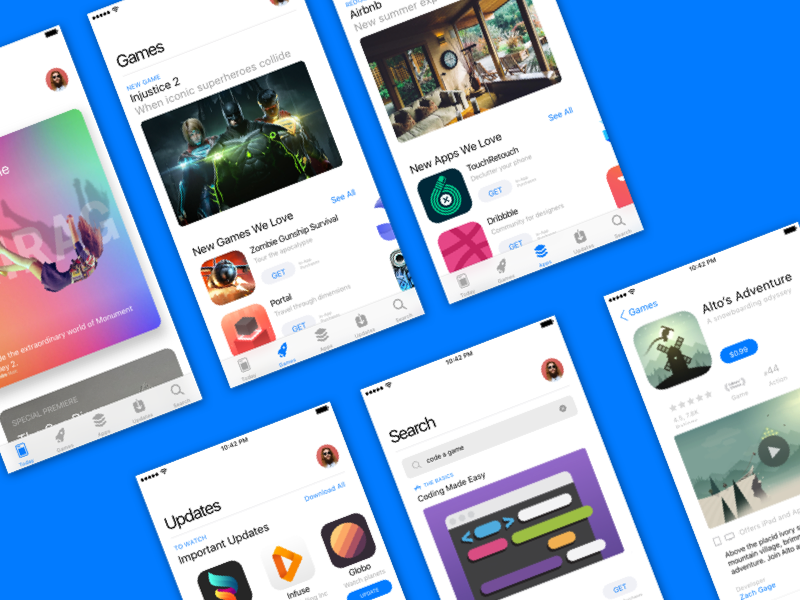

Apple Overhauls App Store Web Interface With New iOS-like Design


As part of today’s redesign, Apple is showcasing app screenshots from the iPhone X. Previously, the web interface used the old square interface of screenshots from older iPhone devices. In the case of screenshots from apps that are not optimized for iPhone X, Apple still shows the older images.


Furthermore, the redesigned web interface comes following Apple’s decision to remove the App Store from the iTunes desktop application. With iTunes 12.7 last September, Apple dramatically simplified the content offerings in iTunes, removing things such as Books, the App Store, and iTunes U.


Apple rolled out a similar redesign for Apple Music on the web last year. Now, both the Apple Music and App Store web interfaces will be familiar to anyone who has used their iOS counterparts.


Source: 9to5mac

Windows
Mac OS
iOS
Linux
3uTools
Win 64-bit For this device
V9.01 2025-12-27
Download
Win 32-bit For this device
V9.01 2025-12-27
Download
3uTools
Intel Chip How to Identify Chip Type
V9.01 2025-12-31
Download
Apple Silicon
V9.01 2025-12-31
Download
How to Identify Chip Type
1.  Click the Apple icon in the top-left corner of the screen and select About This Mac.
2.  Check the Processor or Chip field to determine if it is "Intel" or "Apple".
Please use the 3uTools PC client to install the iOS client:
1、 Install either the Windows or Mac version of 3uTools on your computer
2、 Open the PC client and connect your device to the computer via USB cable
3、 After the connection is successful, wait for the computer to automatically install the mobile app for the device, or locate “Install Mobile App” on the computer and manually click to install.
3uTools
deb file
V3.01 2025-11-20
Download
rpm file
V3.01 2025-11-20
Download
Windows
Windows
iOS
iOS
Android
Android
TV
TV
3uAirPlayer
Win 64-bit For this device
V6.0.2 2025-11-19
Download
Win 32-bit For this device
V6.0.2 2025-11-19
Download
iOS Device Mirroring (No App Required)
1、 Install 3uAirPlayer on the Windows PC
2、 Open Control Center and select Screen Mirroring
3、 From the list, choose your PC to start mirroring
4、 Or connect your iOS device to the PC via USB to begin mirroring
Scan to get "3uAirPlayer" App
3uAirPlayer TV V1.0.18
2025-11-28
TV System Requirements: Android 7.0 or later
Download the TV installation package, copy it to a USB drive, insert it into your TV or set-top box, then select the file from the home screen to install.




